

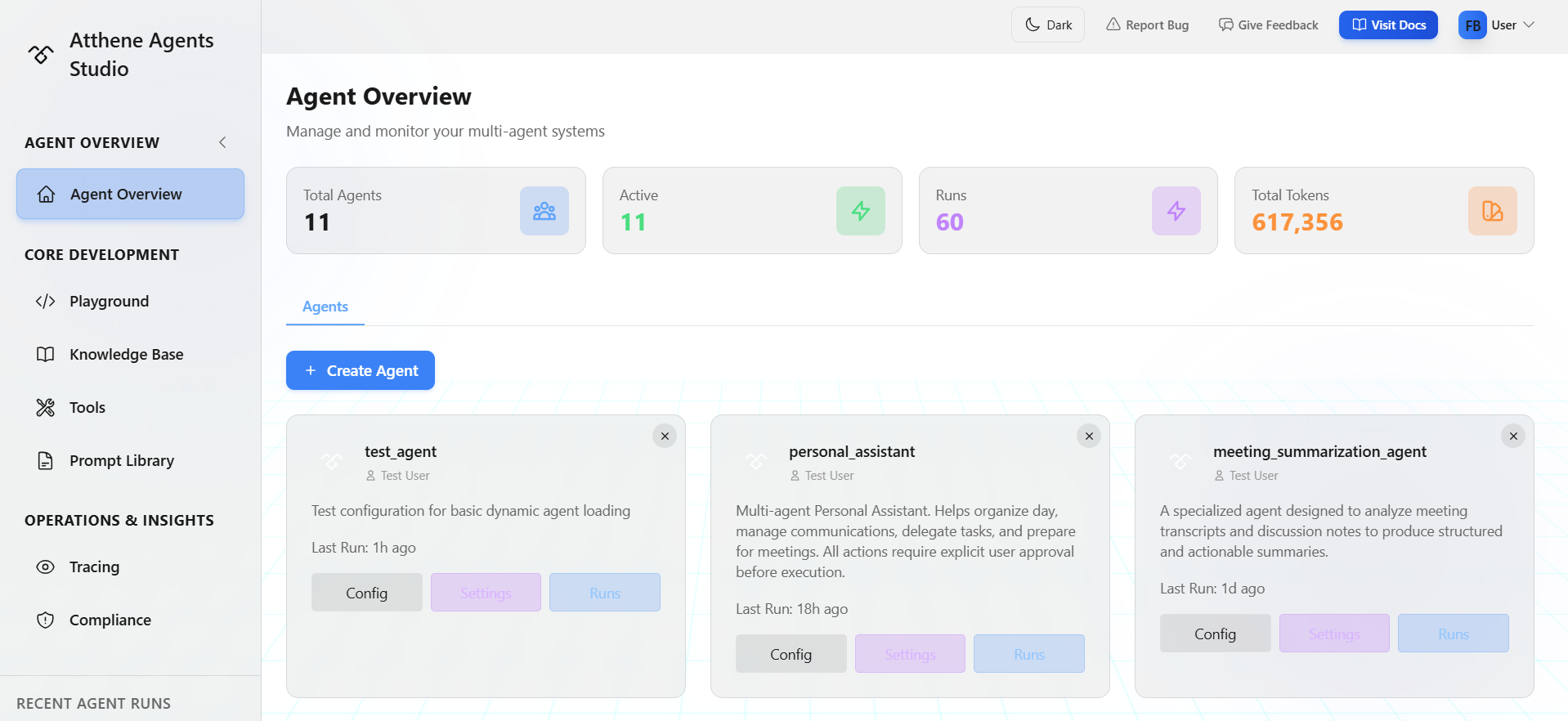
Dashboard Overview
At the top, you’ll see quick stats:- Total Agents: Number of agents you’ve created
- Active: Agents currently deployed
- Runs: Total execution count
- Total Tokens: Cumulative token usage
Agent List
Each agent card shows:- Agent name and description
- Current version number
- Creation date
- Quick action buttons (Config, Settings, Delete)
Quick Actions
Config: Opens the agent’s current version in the Playground where you can edit the YAML configuration Settings: Access general settings, access control, versions, statistics, tools & connections, and cron jobs Delete: Remove the agent and all its versions permanentlyManaging Agent Versions
Understanding Versions
Every time you save changes to an agent, a new version is created. This gives you:- Version history: See all previous configurations
- Easy rollback: Revert to an older version if needed
- Safe experimentation: Test changes without losing the working version
Version States
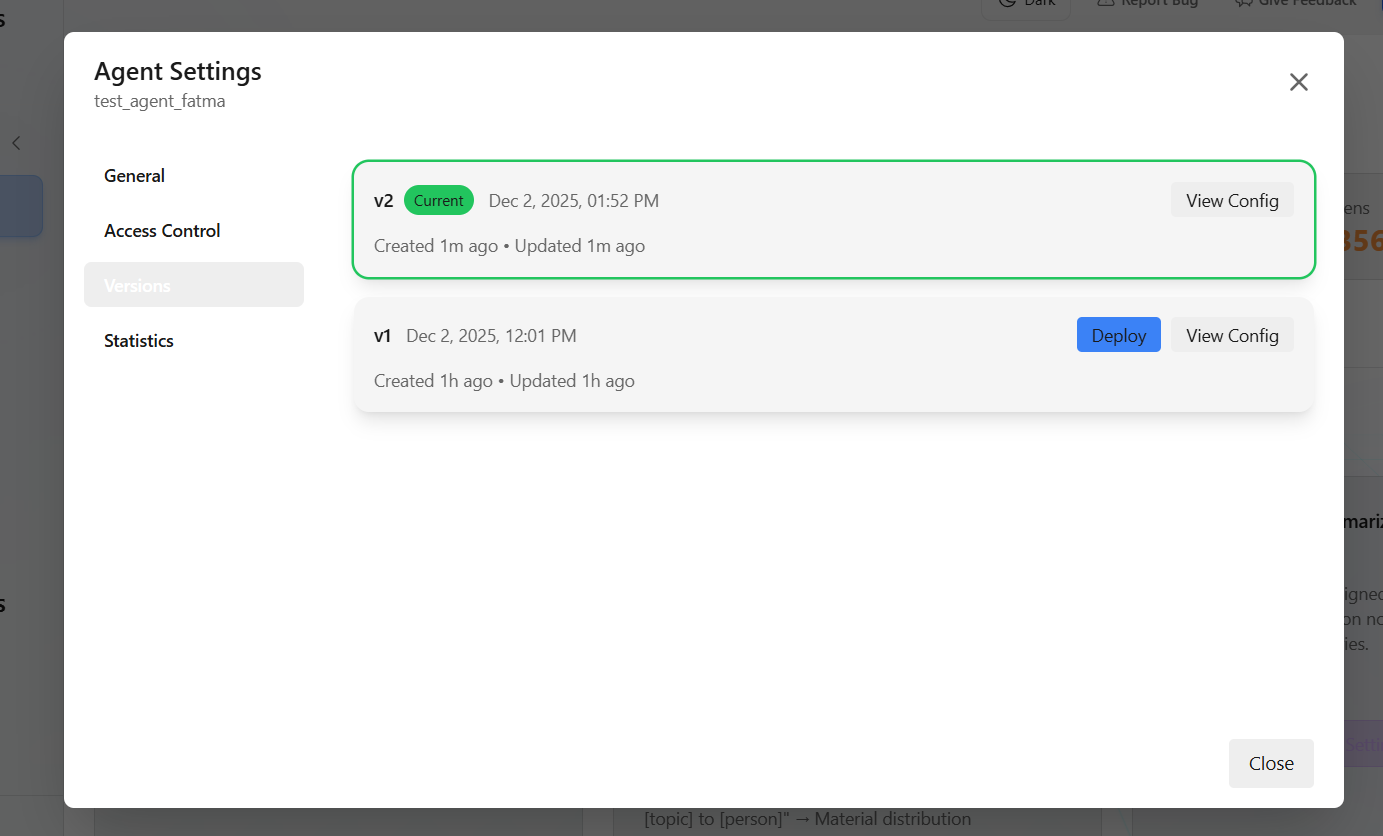
Deploying a Version
1
Go to Agent Settings
Click the settings icon on your agent
2
Navigate to Versions Tab
View all available versions
3
Click Deploy
Click the Deploy button next to the version you want to activate
4
Confirm
This version becomes the “Current” version and handles all requests
Agent Settings
Click the Settings button on any agent to open the Agent Settings modal. The left sidebar groups configuration into six sections. Expand each section below to see everything you can do.
Most settings can only be changed by the agent owner. If you have access to a shared agent you didn’t create, the controls appear in read-only mode.
General
General
The General tab covers the agent’s identity, public access, and who is allowed to use the chatbot.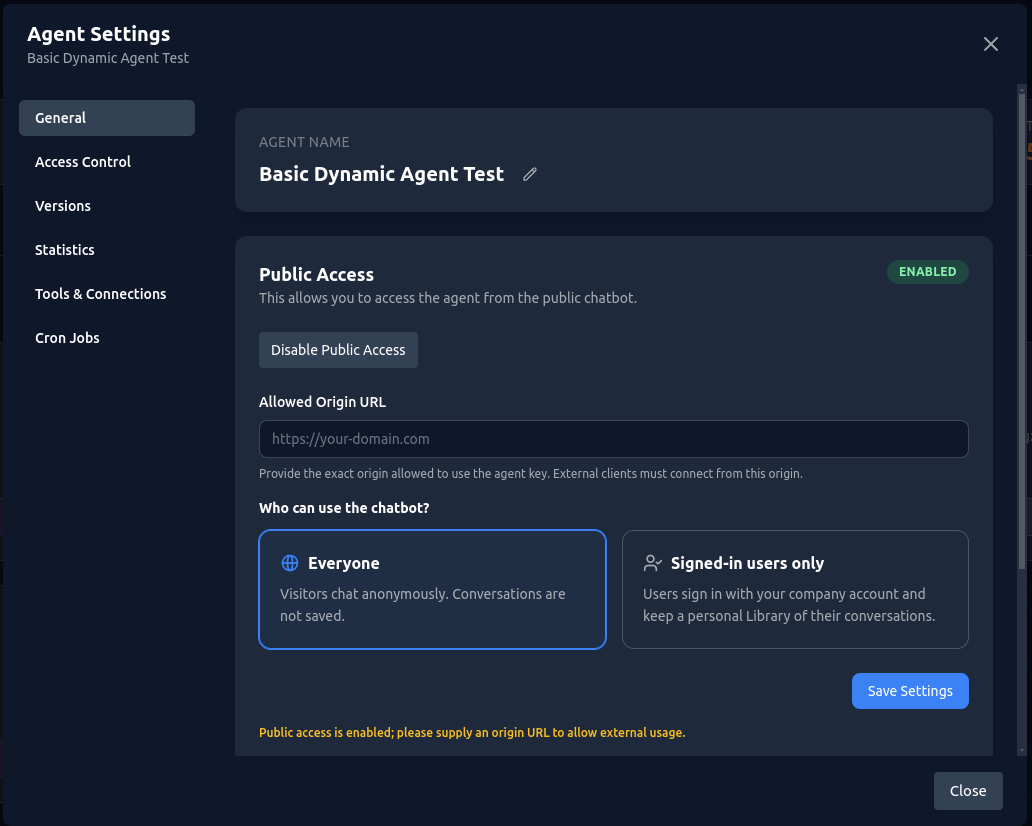
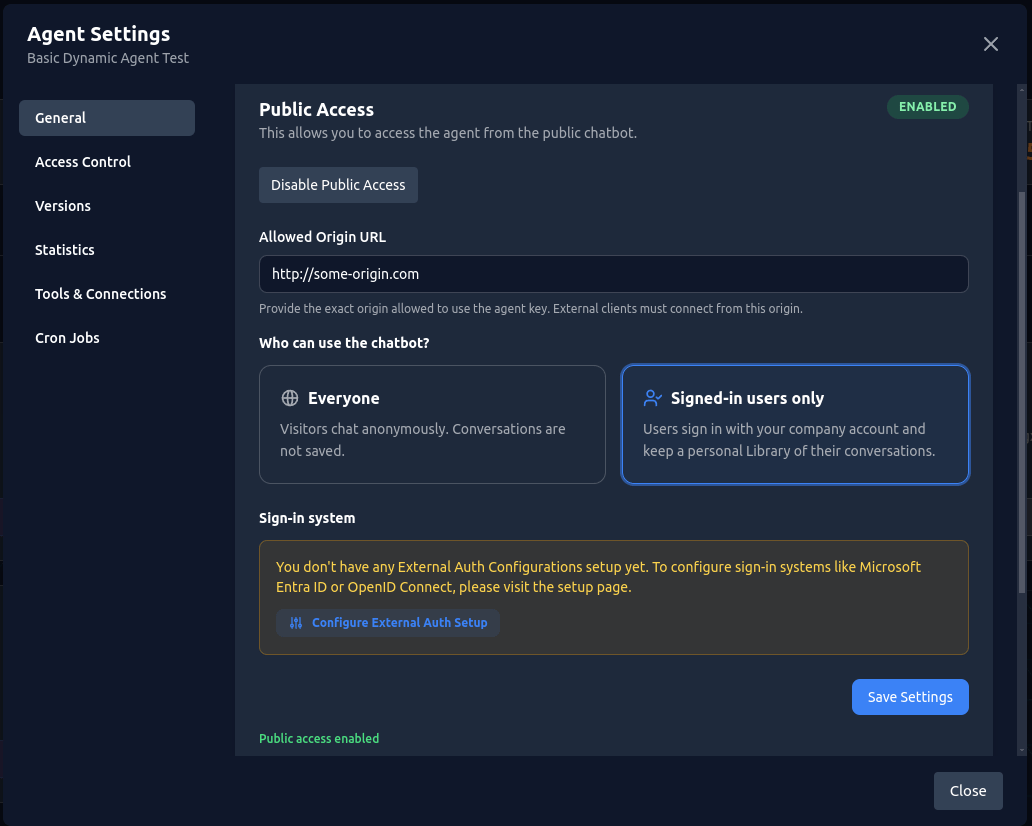
- Rename the agent inline by clicking the pencil icon, editing the name, and saving.
- Press
Enterto save orEscapeto cancel.
- Toggle whether the agent is reachable from the public chatbot over WebSocket.
- When enabled, you must provide an Allowed Origin URL (the exact origin external clients connect from) for security.
- When enabled and fully configured, a banner shows the agent is freely accessible and lets you copy the Agent Key.
Everyone
Visitors chat anonymously. Conversations are not saved.
Signed-in users only
Users sign in with your company account and keep a personal Library of their conversations.
- When Signed-in users only is selected, pick the Sign-in system the chatbot uses to verify who is chatting.
- These are the External Auth configurations (for example Microsoft Entra ID or OpenID Connect) set up for your company.
- On every request, the user’s token (JWT) is validated against the selected identity provider.
- If you don’t have any configurations yet, use Configure External Auth Setup to create one.
See External Auth Setup for how to create and manage sign-in systems for your company.
- Agent Key: Unique identifier for API / WebSocket connections (copyable).
- Architecture: The agent’s architecture type.
- Entry Point: The configured entry point.
- Last Updated: When the agent was last modified.
Access Control
Access Control
Control who inside and outside your organization can see and use the agent.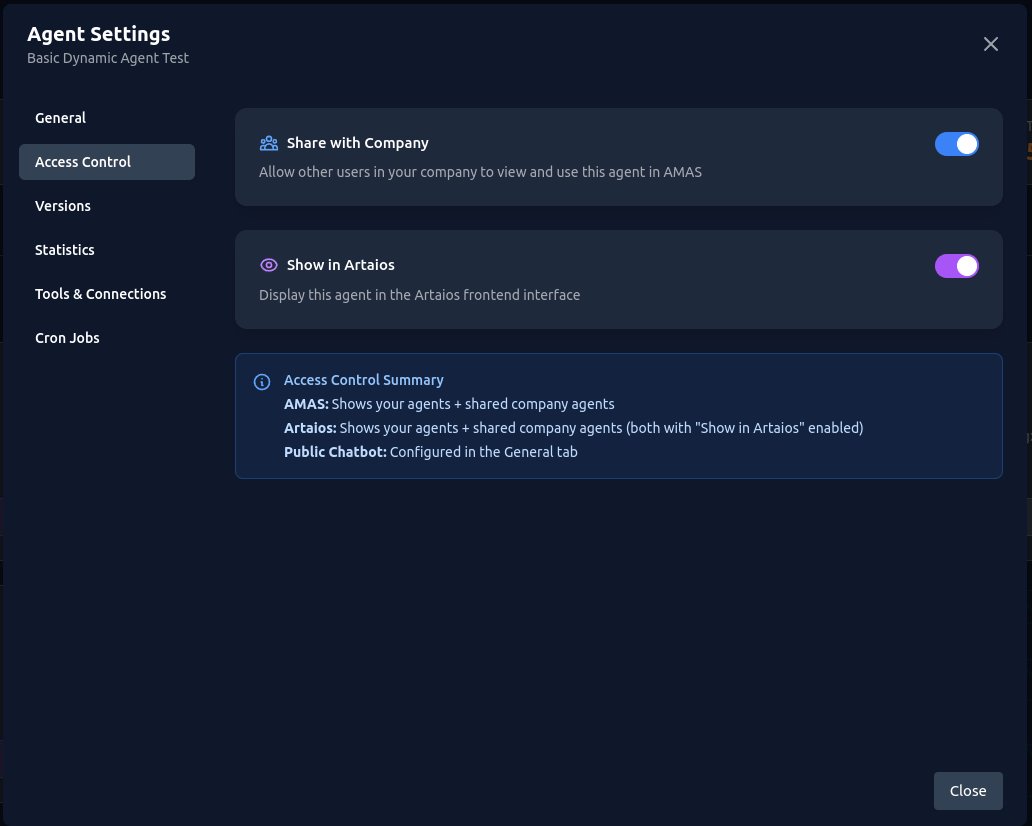
- When enabled, other users in your organization can view and use this agent in Agent Studio.
- Only you (the owner) can modify settings or deploy versions.
- When enabled, the agent is published to Artaios, the end-user chat product — a separate surface from Agent Studio, where non-technical colleagues use finished agents without touching YAML.
- Works alongside company sharing.
Access Control Summary
- Agent Studio: Shows your agents + shared company agents.
- Artaios (end-user chat product): Shows your agents + shared company agents that also have “Show in Artaios” enabled.
- Public Chatbot: Configured via Public Access in the General tab.
Non-owners see a read-only notice and cannot toggle these options.
Versions
Versions
Every save creates a new version, giving you full history and safe rollback.
- View all versions: See the complete version history with creation and update times.
- Current badge: Highlights the version that is actively deployed and serves all requests.
- Deploy: Activate a specific historical version, making it the new “Current” version.
- View Config: Open that version’s YAML in the Playground to inspect or edit it.
Statistics
Statistics
View usage metrics for the agent.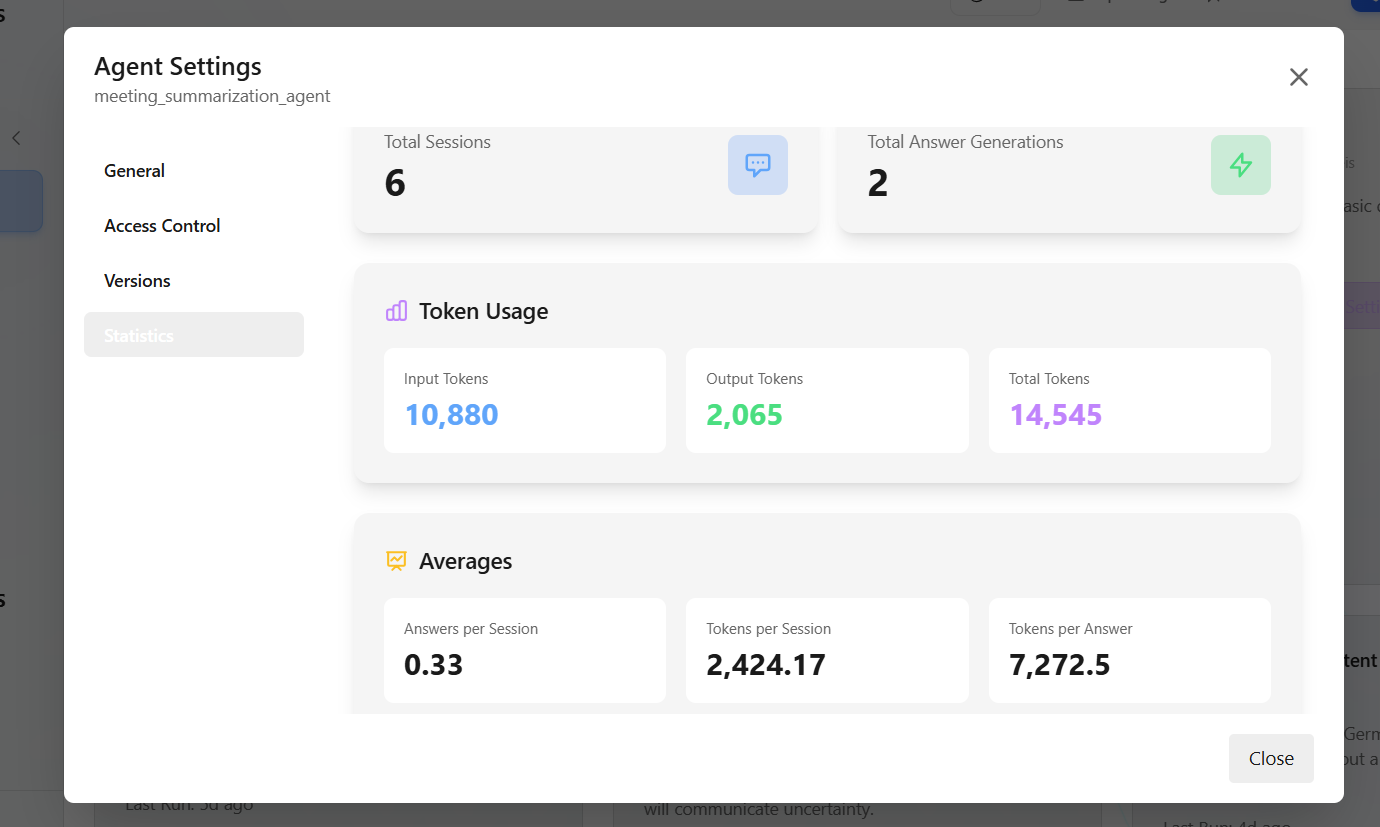
- Total Sessions
- Total Answer Generations
- Input Tokens
- Output Tokens
- Total Tokens
- Answers per Session
- Tokens per Session
- Tokens per Answer
Playground preview sessions are not included in these statistics.
Tools & Connections
Tools & Connections
Review every tool the agent uses and the status of its required connections.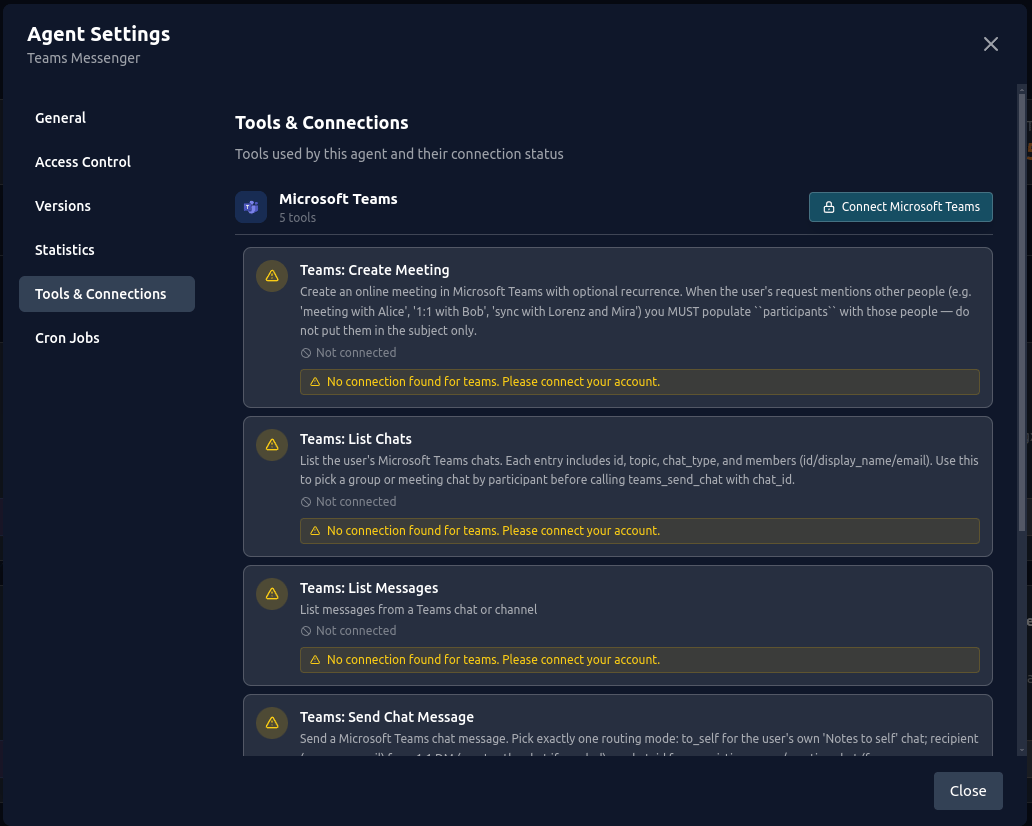
- Grouped by toolkit: Tools are organized under their toolkit (for example Outlook, Teams) with an icon and tool count.
- Connection status: Each tool shows a green check when connected, or a warning when a connection is missing or has issues.
- Connect / Disconnect: Authorize a toolkit (or an individual tool) directly from here, or disconnect an existing connection.
- Issues: Hover the warning icon to see why a tool isn’t ready (for example
No connection found). - Summary footer: Shows total tools and total issues, with a Refresh button to re-check status.
Connections rely on the OAuth integrations configured on the Settings page. Tools without integration requirements show no connection status.
Cron Jobs
Cron Jobs
Schedule the agent to run automatically on a recurring or one-time basis.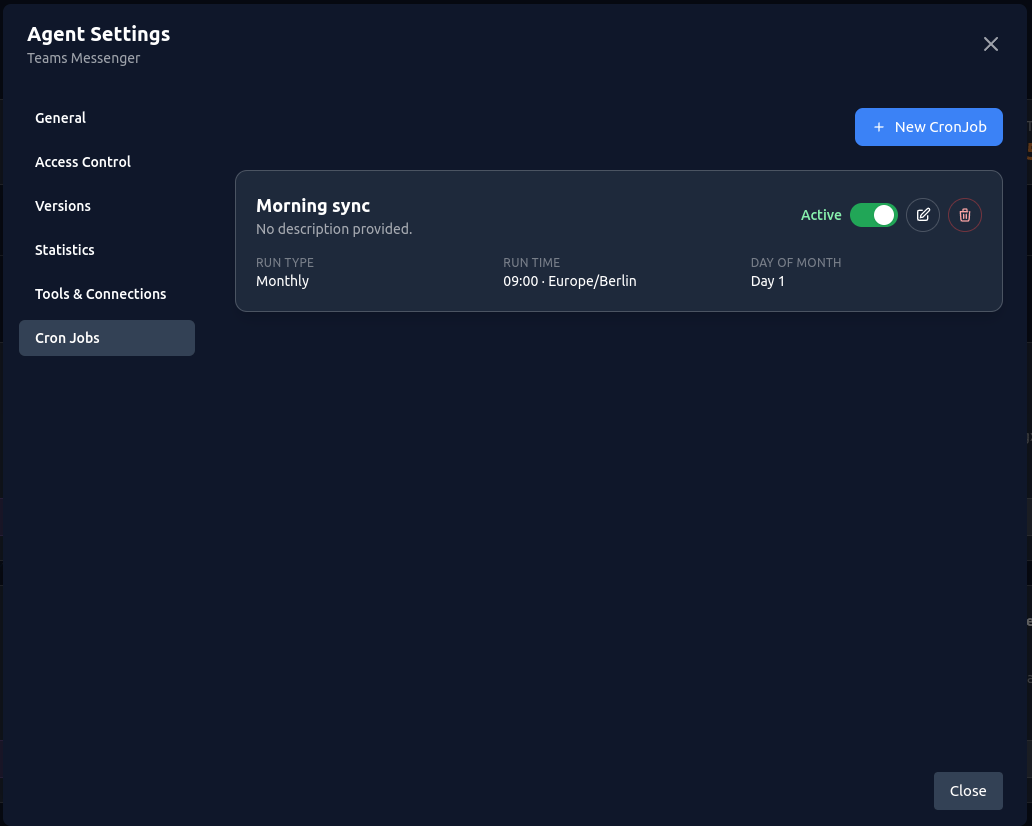
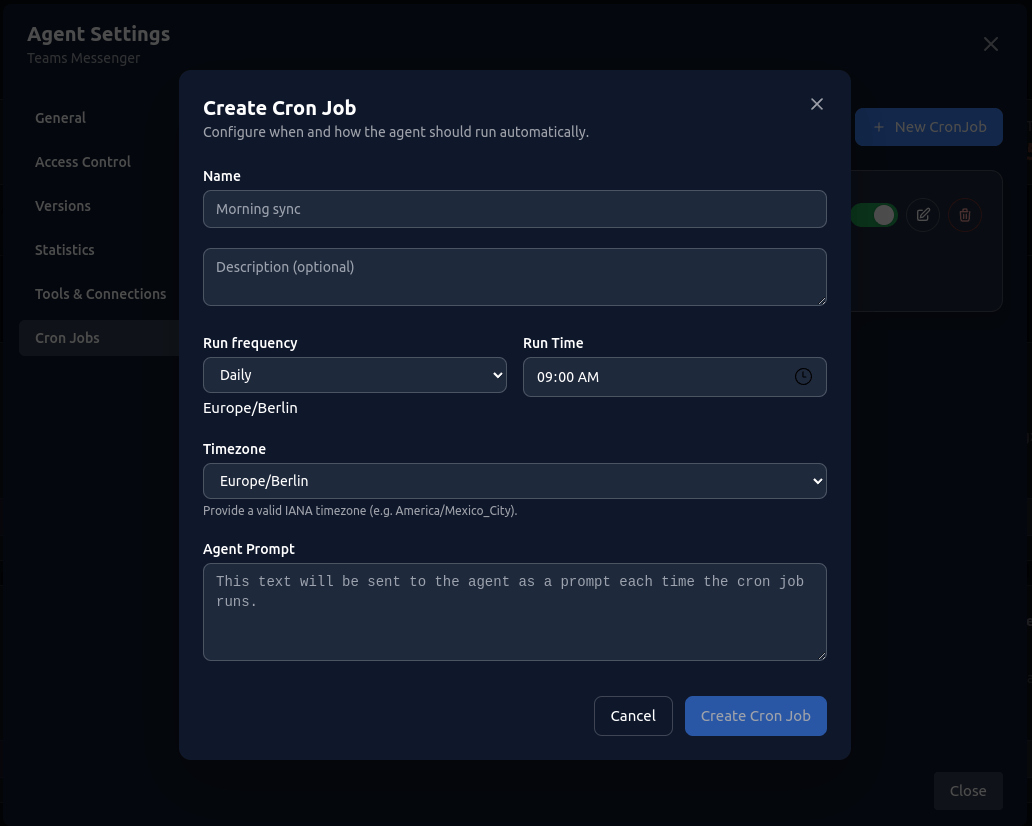
string
required
A label to identify the cron job (e.g. “Morning sync”).
string
Optional notes describing what the job does.
enum
required
How often the job runs: Daily, Weekly, Monthly, or One Time.
time
required
The time of day the job executes.
string
required
A valid IANA timezone (e.g.
America/Mexico_City) used to interpret the run time.date
Shown for One Time jobs. The single date the job runs.
array
Shown for Weekly jobs. Choose at least one weekday (Mon–Sun).
number
Shown for Monthly jobs. Day 1–31, or
-1 to run on the last day of the month.string
required
The text sent to the agent as its input each time the job runs.
1
Open the form
Click New CronJob in the Cron Jobs tab.
2
Set the schedule
Choose a run frequency, time, and timezone. Fill in the frequency-specific fields (date, weekdays, or day of month).
3
Provide the prompt
Enter the Agent Prompt that will be sent to the agent on each run.
4
Create
Click Create Cron Job. The job appears in the list and runs automatically.
The new job shows in the list with an Active status.
- Activate / Deactivate: Use the toggle on each card to pause or resume a job without deleting it.
- Edit: Update any field via the edit (pencil) icon.
- Delete: Permanently remove a job. This action cannot be undone.
Creating New Versions
When you edit a saved agent in the Playground:1
Click Config on Agent Card
Opens the agent in Playground with current version loaded
2
Make Your Changes
Edit the YAML configuration as needed
3
Save as New Version
Click Save as New Version button (only appears when editing)
4
Version Created
A new version is automatically created and appears in the Versions tab
The Playground shows a version dropdown when editing an agent. This lets you switch between versions to view their configurations.
Best Practices
Sharing Agents
To share an agent with your organization:- Click Settings on the agent card
- Go to Access Control tab
- Enable Share with Company
- Optionally enable Show in Artaios to publish it to the Artaios end-user chat product
Shared agents are read-only for other users. Only the owner can modify settings or deploy versions.
Common Questions
Q: What happens to my API connections when I deploy a new version? A: They immediately start using the new version. No downtime, but behavior may change based on your config updates. Q: Can I restore a deleted agent? A: No. Deletion is permanent. Make sure you export the YAML configuration if you might need it later. Q: How many versions can I have? A: Unlimited. All versions are stored and accessible.What’s Next?
REST API Tutorial
Connect your agents to applications
Chatbot Integration
Embed an agent in your website
YAML Configuration
Learn complete YAML syntax
Agent Types
Learn about agent architectures