> ## Documentation Index
> Fetch the complete documentation index at: https://docs.artaios.ai/llms.txt
> Use this file to discover all available pages before exploring further.
# Tool Management
> Configure capabilities for your agents like web search, code execution, and custom integrations
Tools give your agents the ability to perform actions beyond just responding with text. They can search the web, execute code, query databases, and more.
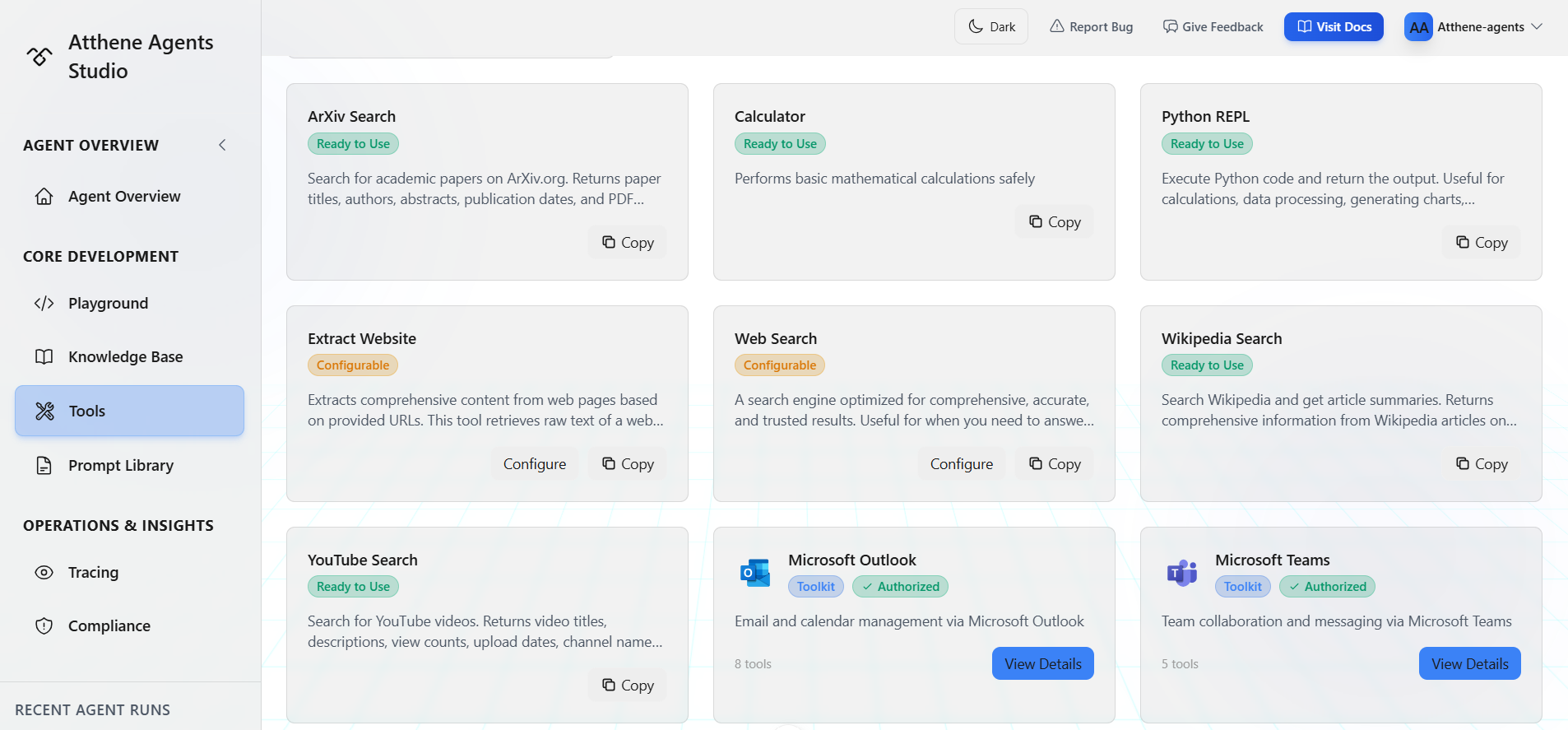 The Tools page shows all available tools in a grid layout. Each card displays the tool's name, description, and available actions (Configure, Copy, Authenticate).
## Tools Interface
The Tools page has two main tabs:
### All Tools Tab
Browse all available tools:
* **Basic Tools**: Ready-to-use tools like web search, Wikipedia, calculator
* **Toolkits**: OAuth-based integrations like Microsoft Outlook and Teams
Each tool card shows:
* Tool name and description
* Configuration status badge (Config Required, Configurable, or Ready to Use)
* Toolkit badge (for toolkit tools)
* Authorization status (for toolkits)
* Action buttons (Configure, Copy, Authenticate, or View Details)
Use the **Filters** button to toggle between All, Toolkits, or Basic Tools only.
### My Tools Tab
Manage your custom tools and configured tool instances
## Adding Tools to Your YAML
When you click the **+** button in the Playground, you'll see a list of available tools:
The Tools page shows all available tools in a grid layout. Each card displays the tool's name, description, and available actions (Configure, Copy, Authenticate).
## Tools Interface
The Tools page has two main tabs:
### All Tools Tab
Browse all available tools:
* **Basic Tools**: Ready-to-use tools like web search, Wikipedia, calculator
* **Toolkits**: OAuth-based integrations like Microsoft Outlook and Teams
Each tool card shows:
* Tool name and description
* Configuration status badge (Config Required, Configurable, or Ready to Use)
* Toolkit badge (for toolkit tools)
* Authorization status (for toolkits)
* Action buttons (Configure, Copy, Authenticate, or View Details)
Use the **Filters** button to toggle between All, Toolkits, or Basic Tools only.
### My Tools Tab
Manage your custom tools and configured tool instances
## Adding Tools to Your YAML
When you click the **+** button in the Playground, you'll see a list of available tools:
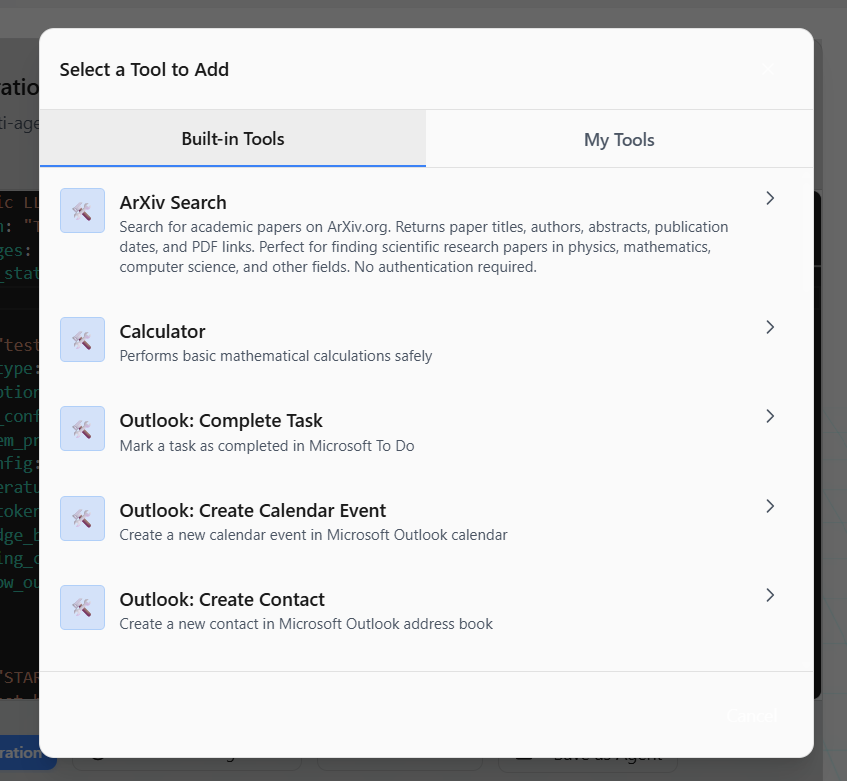 This modal shows all available tools that you can insert into your agent configuration.
This is for quick YAML insertion in the Playground. Browse by toolkit or search for specific tools.
## Using Tools in Agents
Once configured, add tools to your agent's YAML:
```yaml theme={null}
agents:
- name: "research_agent"
agent_type: "react_agent"
tools: ["tavily_search", "wikipedia"] # Add tool names here
system_prompt: "You are a research assistant."
```
Only `react_agent` type can use tools. Standard `llm_agent` cannot execute tools.
**→ [Agent Types Reference](/documentation/agent_config/types_config/agent-types)** - Learn about ReAct agents and tool execution
## Toolkits
Toolkits are collections of related tools that require OAuth authentication. For example, the **Microsoft Outlook** toolkit includes tools for reading emails, sending emails, and managing calendar events.
Toolkits require OAuth authentication to connect external services like Microsoft Outlook or Teams.
### Available Toolkits
Current toolkits:
* **Microsoft Outlook**: Email and calendar management
* **Microsoft Teams**: Channel messages and collaboration
### Authorizing a Toolkit
Before using toolkit tools in your agents, you need to authorize a connection:
Find the toolkit in the All Tools tab and click on it
This modal shows all available tools that you can insert into your agent configuration.
This is for quick YAML insertion in the Playground. Browse by toolkit or search for specific tools.
## Using Tools in Agents
Once configured, add tools to your agent's YAML:
```yaml theme={null}
agents:
- name: "research_agent"
agent_type: "react_agent"
tools: ["tavily_search", "wikipedia"] # Add tool names here
system_prompt: "You are a research assistant."
```
Only `react_agent` type can use tools. Standard `llm_agent` cannot execute tools.
**→ [Agent Types Reference](/documentation/agent_config/types_config/agent-types)** - Learn about ReAct agents and tool execution
## Toolkits
Toolkits are collections of related tools that require OAuth authentication. For example, the **Microsoft Outlook** toolkit includes tools for reading emails, sending emails, and managing calendar events.
Toolkits require OAuth authentication to connect external services like Microsoft Outlook or Teams.
### Available Toolkits
Current toolkits:
* **Microsoft Outlook**: Email and calendar management
* **Microsoft Teams**: Channel messages and collaboration
### Authorizing a Toolkit
Before using toolkit tools in your agents, you need to authorize a connection:
Find the toolkit in the All Tools tab and click on it
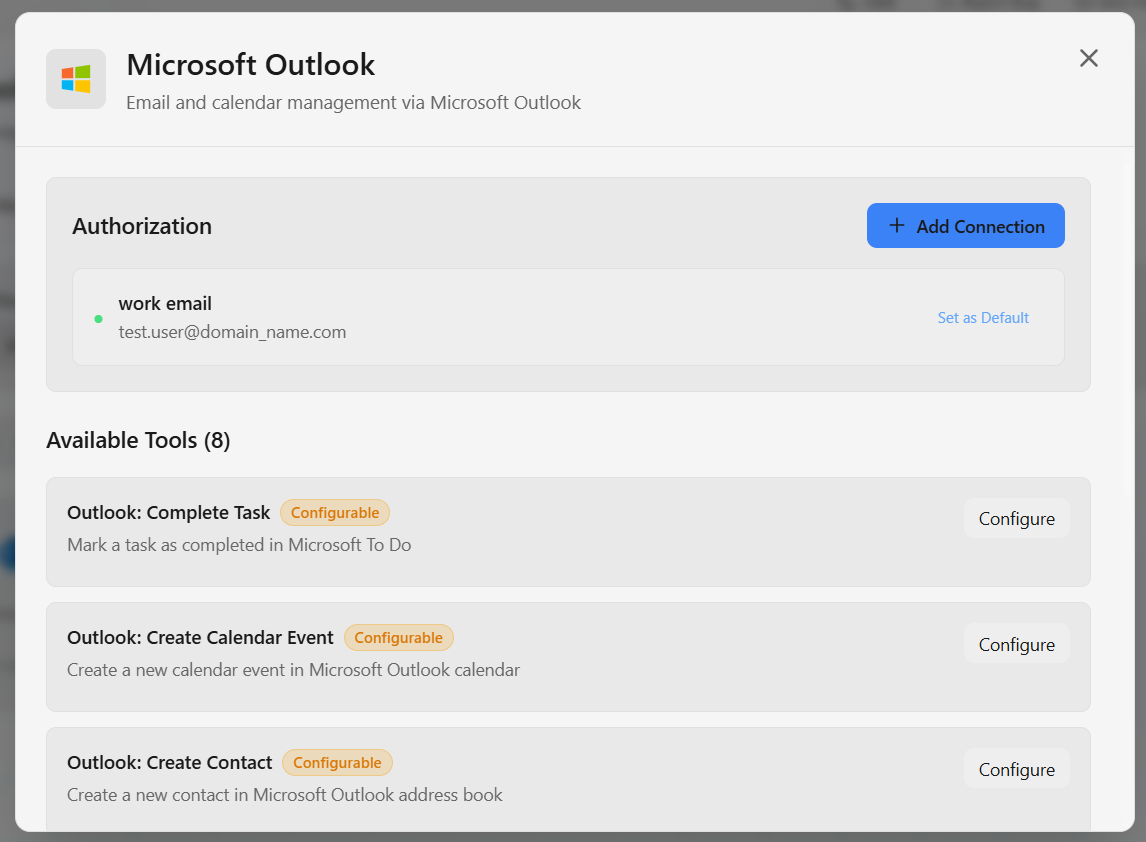 Opens the authorization flow
Follow the OAuth flow to grant permissions
You'll be redirected to Microsoft/Google to sign in
Your connection is now saved and can be used by agents
Connections use the default integration configured in Settings. You cannot choose a different integration during connection creation.
### Using Toolkit Tools in Agents
Once you have a connection, you can use toolkit tools in your YAML:
```yaml theme={null}
agents:
- name: "email_assistant"
agent_type: "react_agent"
tools:
- "outlook_list_emails"
- "outlook_get_email"
- "outlook_send_email"
system_prompt: "You are an email assistant."
```
#### Specifying a Connection
By default, agents use the first available connection for a toolkit. To use a specific connection:
```yaml theme={null}
agents:
- name: "email_assistant"
agent_type: "react_agent"
tools:
- name: "outlook_list_emails"
tool_type: "outlook_list_emails"
connection: "conn_123abc" # Specify connection
system_prompt: "You are an email assistant."
```
If you don't specify a connection, the agent uses the default connection for that toolkit. If no connection exists, the tool will fail.
### Managing Connections
**View Connections**: Click on a toolkit to see all your connections
**Set Default**: Make a connection the default for that toolkit
**Delete Connection**: Remove a connection you no longer need
Deleting a connection will break any agents using it. Make sure to update your agents first.
## Available Tools
### Basic Tools
**Tavily Search** (`tavily_search`)
* Web search optimized for accurate, trusted results
* Real-time information with citations
* Configurable: max\_results, timeout, include\_answer, etc.
**Tavily Extract** (`tavily_extract`)
* Extract content from specific URLs
* Clean and parsed HTML content
* Configurable: format, timeout
**Google Search** (`google_search`)
* Gemini-grounded Google Search with AI-synthesized answers and citations
* Configurable: model, temperature, max\_output\_tokens, timeout
**Wikipedia Search** (`wikipedia_search`)
* Search Wikipedia articles
* No configuration needed
**YouTube Search** (`youtube_search`)
* Search for YouTube videos
* Get video metadata and transcripts
**Arxiv Search** (`arxiv_search`)
* Search academic papers on Arxiv
* Research and scientific content
**Python REPL** (`python_repl`)
* Execute Python code in a sandboxed environment
* Mathematical calculations
* Access to: math, datetime, json, re, random modules
* **No external libraries** (no pandas, numpy, etc.)
**Calculator** (`calculator`)
* Perform mathematical calculations
* Simple arithmetic and computations
**Randomizer** (`randomizer`)
* Generate random integers within a configurable range
* Configurable: min\_value, max\_value
**Memory Management** (`memory`)
* Save information to designated memory spaces for long-term retention
* Configurable: modules (list of memory module names to expose)
* Works with memory modules that have `auto_save: false`
**Schedule Agent Task** (`schedule_agent_task`)
* Create scheduled tasks (cronjobs) for agents
* Supports one-time, daily, weekly, and monthly schedules
**Manage Agent Tasks** (`manage_agent_tasks`)
* Query, update, enable/disable, or delete existing schedules
* Supports batch operations
**List Agents** (`list_agents`)
* Discover agents available to the user
* Supports semantic search for large catalogs
**Search Knowledge Bases** (`search_knowledge_bases`)
* Discover available knowledge sources (SharePoint, OneDrive, Google Drive, uploaded docs)
* Used before attaching KBs to agents via the agent builder
### Microsoft Outlook Toolkit
Requires OAuth authorization via connection:
* **List Emails** (`outlook_list_emails`)
* **Get Email** (`outlook_get_email`)
* **Send Email** (`outlook_send_email`)
* **Reply to Email** (`outlook_reply_email`)
* **Forward Email** (`outlook_forward_email`)
* **List Calendar Events** (`outlook_list_calendar_events`)
* **Get Calendar Event** (`outlook_get_calendar_event`)
* **Create Calendar Event** (`outlook_create_calendar_event`)
* **List Tasks** (`outlook_list_tasks`)
* **Create Task** (`outlook_create_task`)
* **Complete Task** (`outlook_complete_task`)
* **List Contacts** (`outlook_list_contacts`)
* **Create Contact** (`outlook_create_contact`)
### Microsoft Teams Toolkit
Requires OAuth authorization via connection:
* **Send Message** (`teams_send_message`)
* **Send Chat** (`teams_send_chat`)
* **List Messages** (`teams_list_messages`)
* **List Chats** (`teams_list_chats`)
* **List Teams** (`teams_list_teams`)
* **List Channels** (`teams_list_channels`)
* **Create Meeting** (`teams_create_meeting`) - Can create recurring events
## Tool Configuration
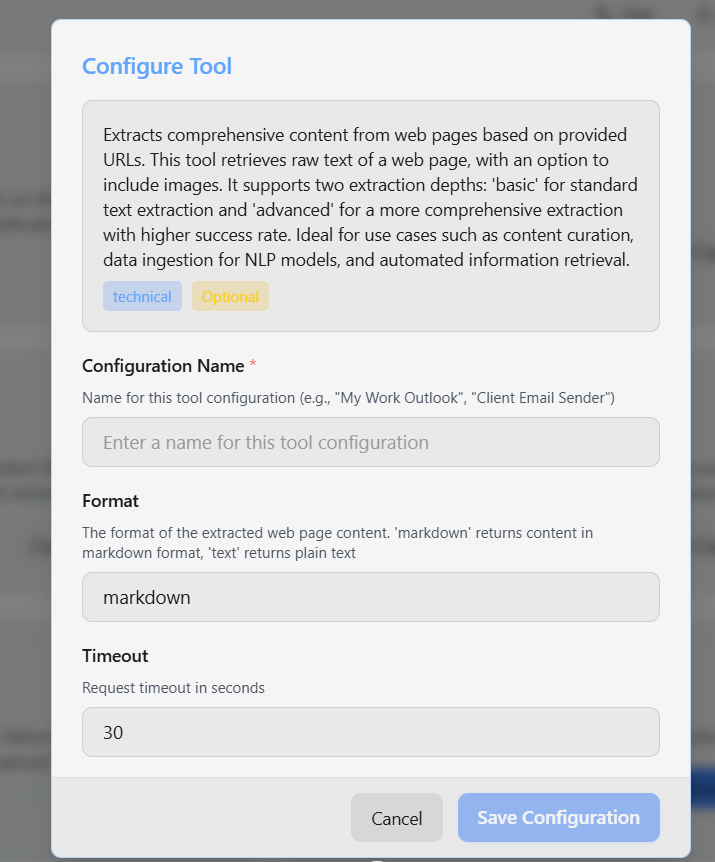
Some tools allow you to configure parameters like timeout, max results, etc.
Opens the authorization flow
Follow the OAuth flow to grant permissions
You'll be redirected to Microsoft/Google to sign in
Your connection is now saved and can be used by agents
Connections use the default integration configured in Settings. You cannot choose a different integration during connection creation.
### Using Toolkit Tools in Agents
Once you have a connection, you can use toolkit tools in your YAML:
```yaml theme={null}
agents:
- name: "email_assistant"
agent_type: "react_agent"
tools:
- "outlook_list_emails"
- "outlook_get_email"
- "outlook_send_email"
system_prompt: "You are an email assistant."
```
#### Specifying a Connection
By default, agents use the first available connection for a toolkit. To use a specific connection:
```yaml theme={null}
agents:
- name: "email_assistant"
agent_type: "react_agent"
tools:
- name: "outlook_list_emails"
tool_type: "outlook_list_emails"
connection: "conn_123abc" # Specify connection
system_prompt: "You are an email assistant."
```
If you don't specify a connection, the agent uses the default connection for that toolkit. If no connection exists, the tool will fail.
### Managing Connections
**View Connections**: Click on a toolkit to see all your connections
**Set Default**: Make a connection the default for that toolkit
**Delete Connection**: Remove a connection you no longer need
Deleting a connection will break any agents using it. Make sure to update your agents first.
## Available Tools
### Basic Tools
**Tavily Search** (`tavily_search`)
* Web search optimized for accurate, trusted results
* Real-time information with citations
* Configurable: max\_results, timeout, include\_answer, etc.
**Tavily Extract** (`tavily_extract`)
* Extract content from specific URLs
* Clean and parsed HTML content
* Configurable: format, timeout
**Google Search** (`google_search`)
* Gemini-grounded Google Search with AI-synthesized answers and citations
* Configurable: model, temperature, max\_output\_tokens, timeout
**Wikipedia Search** (`wikipedia_search`)
* Search Wikipedia articles
* No configuration needed
**YouTube Search** (`youtube_search`)
* Search for YouTube videos
* Get video metadata and transcripts
**Arxiv Search** (`arxiv_search`)
* Search academic papers on Arxiv
* Research and scientific content
**Python REPL** (`python_repl`)
* Execute Python code in a sandboxed environment
* Mathematical calculations
* Access to: math, datetime, json, re, random modules
* **No external libraries** (no pandas, numpy, etc.)
**Calculator** (`calculator`)
* Perform mathematical calculations
* Simple arithmetic and computations
**Randomizer** (`randomizer`)
* Generate random integers within a configurable range
* Configurable: min\_value, max\_value
**Memory Management** (`memory`)
* Save information to designated memory spaces for long-term retention
* Configurable: modules (list of memory module names to expose)
* Works with memory modules that have `auto_save: false`
**Schedule Agent Task** (`schedule_agent_task`)
* Create scheduled tasks (cronjobs) for agents
* Supports one-time, daily, weekly, and monthly schedules
**Manage Agent Tasks** (`manage_agent_tasks`)
* Query, update, enable/disable, or delete existing schedules
* Supports batch operations
**List Agents** (`list_agents`)
* Discover agents available to the user
* Supports semantic search for large catalogs
**Search Knowledge Bases** (`search_knowledge_bases`)
* Discover available knowledge sources (SharePoint, OneDrive, Google Drive, uploaded docs)
* Used before attaching KBs to agents via the agent builder
### Microsoft Outlook Toolkit
Requires OAuth authorization via connection:
* **List Emails** (`outlook_list_emails`)
* **Get Email** (`outlook_get_email`)
* **Send Email** (`outlook_send_email`)
* **Reply to Email** (`outlook_reply_email`)
* **Forward Email** (`outlook_forward_email`)
* **List Calendar Events** (`outlook_list_calendar_events`)
* **Get Calendar Event** (`outlook_get_calendar_event`)
* **Create Calendar Event** (`outlook_create_calendar_event`)
* **List Tasks** (`outlook_list_tasks`)
* **Create Task** (`outlook_create_task`)
* **Complete Task** (`outlook_complete_task`)
* **List Contacts** (`outlook_list_contacts`)
* **Create Contact** (`outlook_create_contact`)
### Microsoft Teams Toolkit
Requires OAuth authorization via connection:
* **Send Message** (`teams_send_message`)
* **Send Chat** (`teams_send_chat`)
* **List Messages** (`teams_list_messages`)
* **List Chats** (`teams_list_chats`)
* **List Teams** (`teams_list_teams`)
* **List Channels** (`teams_list_channels`)
* **Create Meeting** (`teams_create_meeting`) - Can create recurring events
## Tool Configuration
Some tools allow you to configure parameters like timeout, max results, etc.
 ### Configurable Tools
Tools like Tavily Search have optional configuration parameters:
* **`max_results`**: Number of search results to return
* **`timeout`**: Request timeout in seconds
* **`include_answer`**: Include AI-generated answer
* And more tool-specific options
Configuration parameters are set when you create a tool configuration instance. They're not stored in your YAML, but referenced by the tool name.
### Non-Configurable Tools
Tools like Wikipedia Search work out of the box with no configuration needed:
```yaml theme={null}
tools: ["wikipedia_search"]
```
## Tool Security
Toolkit connections grant access to external services. Only create connections you trust.
Monitor tool usage in your agent's execution logs and tracing.
## Troubleshooting
**"Tool not found"**: Check spelling in your YAML. Tool names are case-sensitive
**"Tool timeout"**: External service may be slow. Increase timeout in tool config
**Rate limits**: Many external services have rate limits. Configure retry logic in your tool settings
## Tool Usage Examples
### Research Agent with Web Search
```yaml theme={null}
name: "Research Assistant"
architecture: "workflow"
agents:
- name: "researcher"
agent_type: "react_agent"
tools: ["tavily_search"]
system_prompt: |
You are a research assistant. When asked about current events or facts,
use web search to find accurate information.
```
### Mathematical Calculations with Python
```yaml theme={null}
agents:
- name: "math_assistant"
agent_type: "react_agent"
tools: ["python_repl", "calculator"]
system_prompt: |
You are a mathematical assistant. Use Python REPL for complex calculations
and the calculator for simple arithmetic.
```
### Multi-Tool Agent
```yaml theme={null}
agents:
- name: "assistant"
agent_type: "react_agent"
tools: ["tavily_search", "wikipedia_search", "calculator"]
system_prompt: |
You are a helpful assistant with access to:
- Web search for current information
- Wikipedia for general knowledge
- Calculator for math
Use the appropriate tool for each task.
```
## What's Next?
ReAct agents and tool execution
Complete guide to agent capabilities and tools
Build your own tools for agents
Manage API keys and OAuth integrations
### Configurable Tools
Tools like Tavily Search have optional configuration parameters:
* **`max_results`**: Number of search results to return
* **`timeout`**: Request timeout in seconds
* **`include_answer`**: Include AI-generated answer
* And more tool-specific options
Configuration parameters are set when you create a tool configuration instance. They're not stored in your YAML, but referenced by the tool name.
### Non-Configurable Tools
Tools like Wikipedia Search work out of the box with no configuration needed:
```yaml theme={null}
tools: ["wikipedia_search"]
```
## Tool Security
Toolkit connections grant access to external services. Only create connections you trust.
Monitor tool usage in your agent's execution logs and tracing.
## Troubleshooting
**"Tool not found"**: Check spelling in your YAML. Tool names are case-sensitive
**"Tool timeout"**: External service may be slow. Increase timeout in tool config
**Rate limits**: Many external services have rate limits. Configure retry logic in your tool settings
## Tool Usage Examples
### Research Agent with Web Search
```yaml theme={null}
name: "Research Assistant"
architecture: "workflow"
agents:
- name: "researcher"
agent_type: "react_agent"
tools: ["tavily_search"]
system_prompt: |
You are a research assistant. When asked about current events or facts,
use web search to find accurate information.
```
### Mathematical Calculations with Python
```yaml theme={null}
agents:
- name: "math_assistant"
agent_type: "react_agent"
tools: ["python_repl", "calculator"]
system_prompt: |
You are a mathematical assistant. Use Python REPL for complex calculations
and the calculator for simple arithmetic.
```
### Multi-Tool Agent
```yaml theme={null}
agents:
- name: "assistant"
agent_type: "react_agent"
tools: ["tavily_search", "wikipedia_search", "calculator"]
system_prompt: |
You are a helpful assistant with access to:
- Web search for current information
- Wikipedia for general knowledge
- Calculator for math
Use the appropriate tool for each task.
```
## What's Next?
ReAct agents and tool execution
Complete guide to agent capabilities and tools
Build your own tools for agents
Manage API keys and OAuth integrations