> ## Documentation Index
> Fetch the complete documentation index at: https://docs.artaios.ai/llms.txt
> Use this file to discover all available pages before exploring further.
# Platform Overview
> Navigate Artaios Agents Studio and understand the main interface
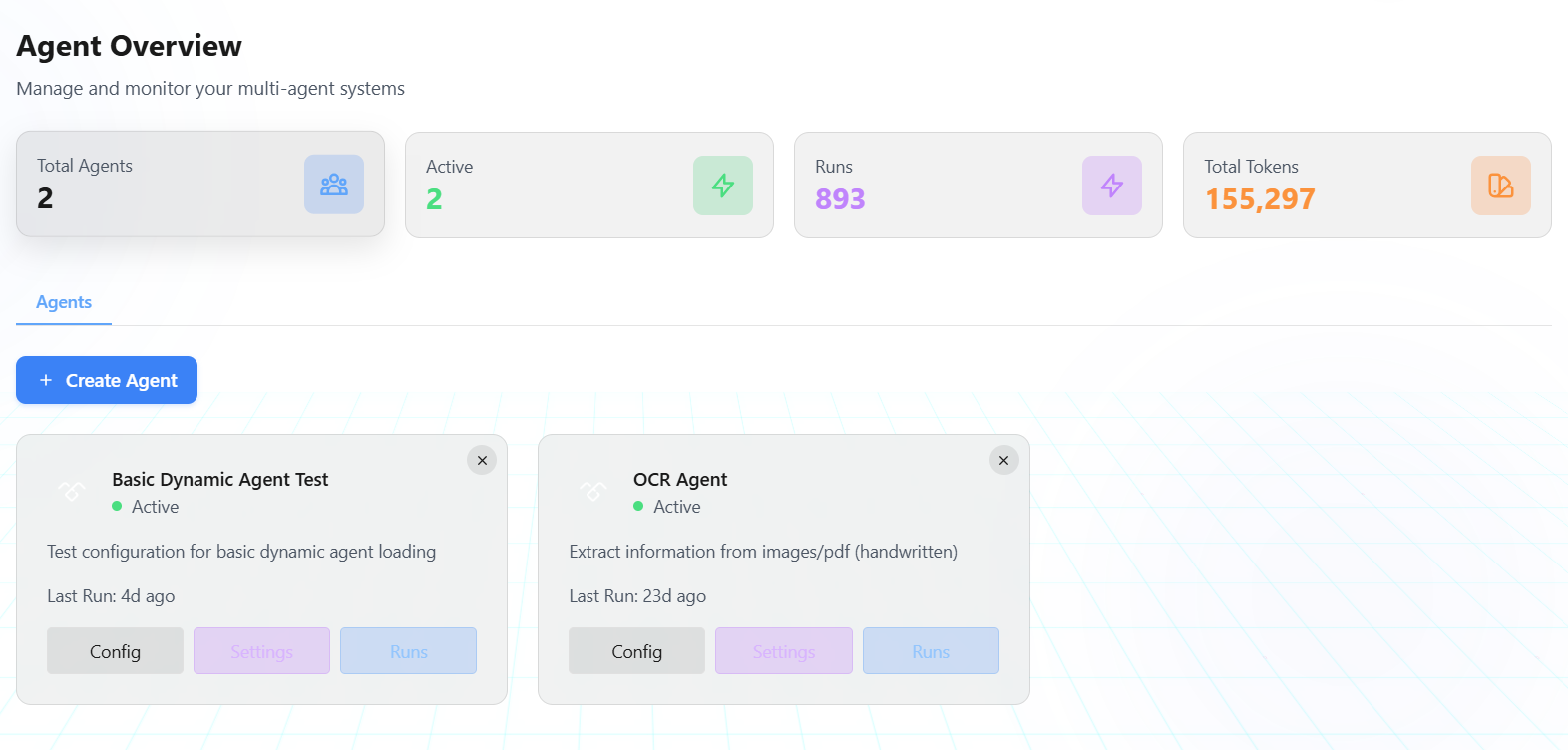
When you log into [Artaios Agents Studio](https://amas.artaios.com), you'll see the main dashboard with quick stats about your agents and easy access to all platform features.
 ## Main Navigation
The sidebar on the left gives you access to all platform features:
### Agent Overview
Your home page showing:
* Total agents count
* Active agents
* Total runs
* Token usage statistics
This is where you'll see all your saved agents and their performance metrics.
### Playground
The heart of the platform where you build and test agents:
* Write YAML configurations
* Test agents in real-time
* Generate configs with AI
* Load templates
**→ [Learn more about the Playground](/documentation/studio/playground)**
### Knowledge Base
Connect data sources and build RAG systems:
* Connect cloud storage (SharePoint, OneDrive, Google Drive)
* Upload files and documents
* Create collections
* Build knowledge bases with retrieval settings
**→ [Learn more about Knowledge Base](/documentation/studio/knowledge-base)**
### Tools
Configure tools your agents can use:
* Browse available tools
* Create custom tools
* Manage tool configurations
**→ [Learn more about Tools](/documentation/studio/tools)**
### Prompts
Access and manage prompt templates:
* Browse prompt library
* Organize by category
* Copy prompts to your YAML
**→ [Learn more about Prompts](/documentation/studio/prompts)**
### Settings
Configure platform access:
* Manage API keys
* Configure OAuth integrations for toolkits
**→ [Learn more about Settings](/documentation/studio/settings)**
### Tracing
Monitor and debug agent execution:
* View detailed execution traces
* Track tool calls and responses
* Debug multi-agent workflows
* Analyze performance metrics
Tracing documentation is coming soon.
## Quick Start from Dashboard
Click **Playground** in the sidebar to start building
Click **Load Config** and select a template to start from
Use the chat interface on the right to test your agent
Click **Save as Agent** to persist your configuration
## What's Next?
Learn how to build and test agents
Manage your saved agents and versions
## Main Navigation
The sidebar on the left gives you access to all platform features:
### Agent Overview
Your home page showing:
* Total agents count
* Active agents
* Total runs
* Token usage statistics
This is where you'll see all your saved agents and their performance metrics.
### Playground
The heart of the platform where you build and test agents:
* Write YAML configurations
* Test agents in real-time
* Generate configs with AI
* Load templates
**→ [Learn more about the Playground](/documentation/studio/playground)**
### Knowledge Base
Connect data sources and build RAG systems:
* Connect cloud storage (SharePoint, OneDrive, Google Drive)
* Upload files and documents
* Create collections
* Build knowledge bases with retrieval settings
**→ [Learn more about Knowledge Base](/documentation/studio/knowledge-base)**
### Tools
Configure tools your agents can use:
* Browse available tools
* Create custom tools
* Manage tool configurations
**→ [Learn more about Tools](/documentation/studio/tools)**
### Prompts
Access and manage prompt templates:
* Browse prompt library
* Organize by category
* Copy prompts to your YAML
**→ [Learn more about Prompts](/documentation/studio/prompts)**
### Settings
Configure platform access:
* Manage API keys
* Configure OAuth integrations for toolkits
**→ [Learn more about Settings](/documentation/studio/settings)**
### Tracing
Monitor and debug agent execution:
* View detailed execution traces
* Track tool calls and responses
* Debug multi-agent workflows
* Analyze performance metrics
Tracing documentation is coming soon.
## Quick Start from Dashboard
Click **Playground** in the sidebar to start building
Click **Load Config** and select a template to start from
Use the chat interface on the right to test your agent
Click **Save as Agent** to persist your configuration
## What's Next?
Learn how to build and test agents
Manage your saved agents and versions