> ## Documentation Index
> Fetch the complete documentation index at: https://docs.artaios.ai/llms.txt
> Use this file to discover all available pages before exploring further.
# Knowledge Base Management
> Connect data sources and build RAG systems for your agents
The Knowledge Base section is where you upload documents, create collections, and build retrieval systems that your agents can query. Give your agents access to your company's data, documentation, and knowledge.
## Two Main Sections
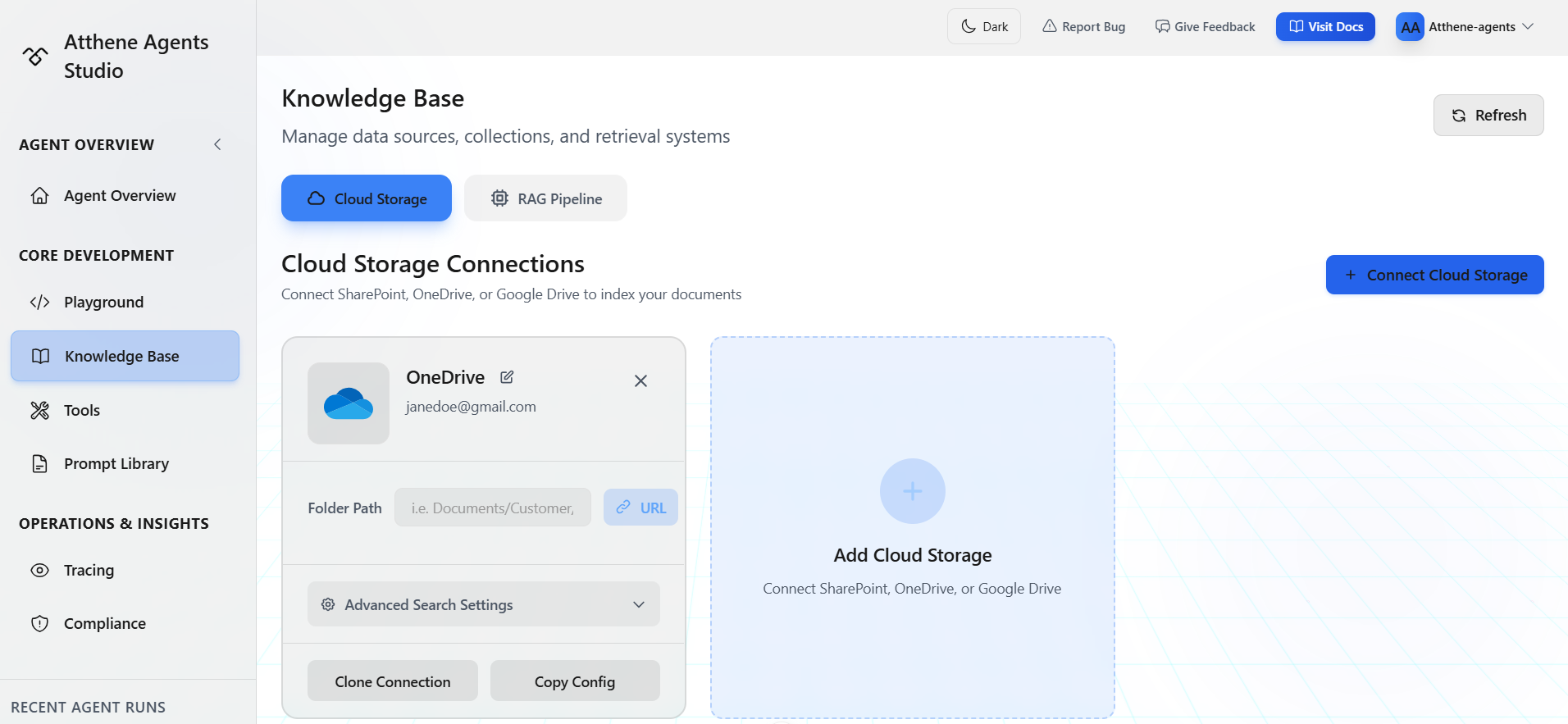
### Cloud Storage
Connect external storage providers to automatically sync and index documents:
* SharePoint
* OneDrive
* Google Drive
 ### RAG Pipeline
Build the retrieval system in 4 steps:
1. **Data Sources** - Upload files or connect to storage
2. **Collections** - Organize data into collections
3. **Knowledge Bases** - Configure retrieval settings
4. **Retrieval Methods** - Set up how agents search your data
## Connecting Cloud Storage
At the top of the Knowledge Base page
### RAG Pipeline
Build the retrieval system in 4 steps:
1. **Data Sources** - Upload files or connect to storage
2. **Collections** - Organize data into collections
3. **Knowledge Bases** - Configure retrieval settings
4. **Retrieval Methods** - Set up how agents search your data
## Connecting Cloud Storage
At the top of the Knowledge Base page
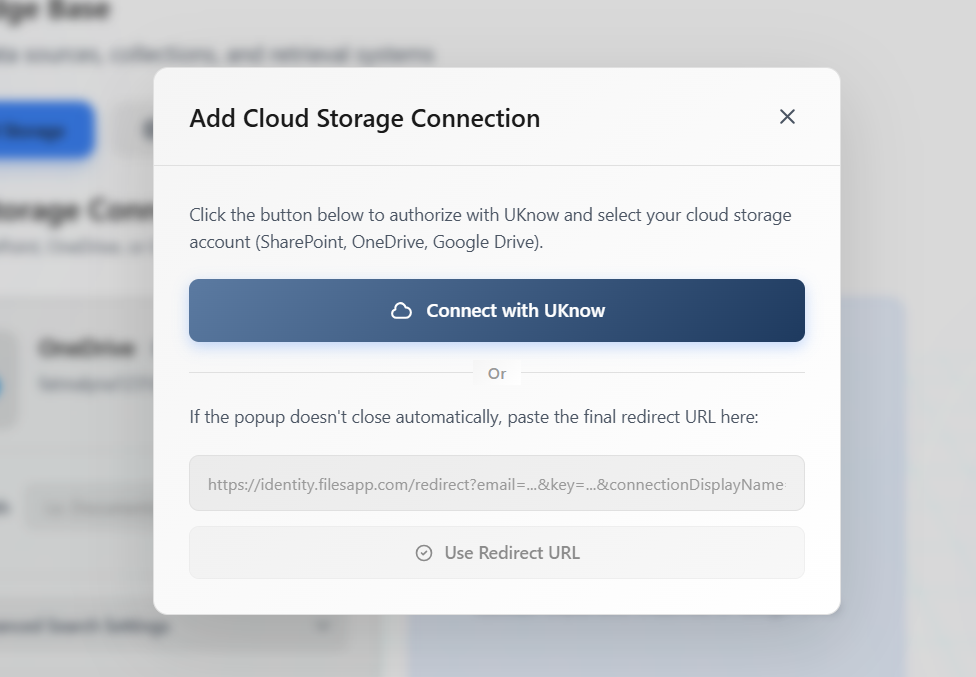 Select SharePoint, OneDrive, or Google Drive
 Follow OAuth flow to grant access
Choose which folders to sync and index
Files are automatically synced and indexed. Updates to documents are reflected in your knowledge bases.
## Building a RAG Pipeline
### Step 1: Data Sources
Upload files or connect to storage:
* **Upload Files**: PDF, DOCX, TXT, Markdown, CSV, Excel
* **Cloud Storage**: Connect SharePoint, OneDrive, or Google Drive (see Cloud Storage section above)
Follow OAuth flow to grant access
Choose which folders to sync and index
Files are automatically synced and indexed. Updates to documents are reflected in your knowledge bases.
## Building a RAG Pipeline
### Step 1: Data Sources
Upload files or connect to storage:
* **Upload Files**: PDF, DOCX, TXT, Markdown, CSV, Excel
* **Cloud Storage**: Connect SharePoint, OneDrive, or Google Drive (see Cloud Storage section above)
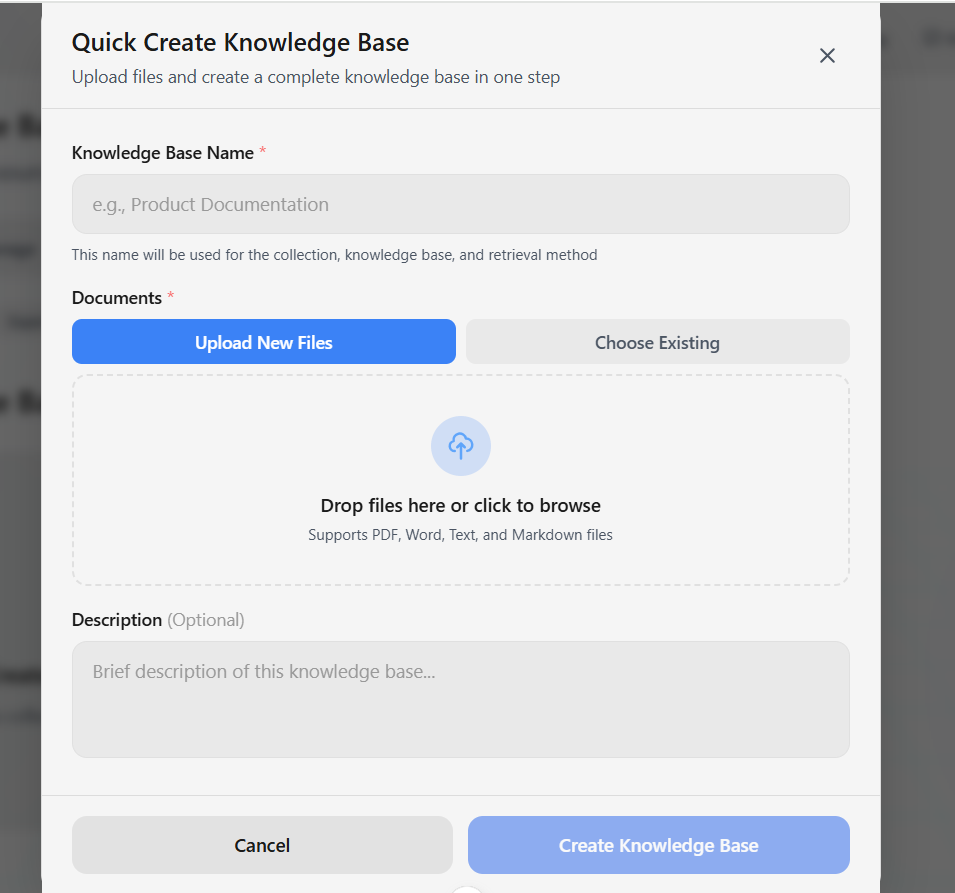 **Supported file types:**
* **Documents**: PDF, DOC, DOCX, TXT, MD (Markdown), LOG
* **Structured Data**: CSV, XLSX, XLS (Excel)
### Step 2: Collections
Group related data sources:
* Create collections by topic or project
* Add multiple data sources to a collection
* Configure chunking and embedding settings per knowledge base
**Collection organization:**
* Collections are reusable groups of data sources
* Use collections to organize data by topic, project, or department
* One data source can belong to multiple collections
### Step 3: Knowledge Bases
Configure processing and retrieval for your data:
* Name your knowledge base
* Select collections and/or individual data sources
* Configure chunking strategy and embedding model
* Set up retrieval parameters
**Processing Configuration:**
#### Chunking Strategies
Control how documents are split:
**Supported file types:**
* **Documents**: PDF, DOC, DOCX, TXT, MD (Markdown), LOG
* **Structured Data**: CSV, XLSX, XLS (Excel)
### Step 2: Collections
Group related data sources:
* Create collections by topic or project
* Add multiple data sources to a collection
* Configure chunking and embedding settings per knowledge base
**Collection organization:**
* Collections are reusable groups of data sources
* Use collections to organize data by topic, project, or department
* One data source can belong to multiple collections
### Step 3: Knowledge Bases
Configure processing and retrieval for your data:
* Name your knowledge base
* Select collections and/or individual data sources
* Configure chunking strategy and embedding model
* Set up retrieval parameters
**Processing Configuration:**
#### Chunking Strategies
Control how documents are split:
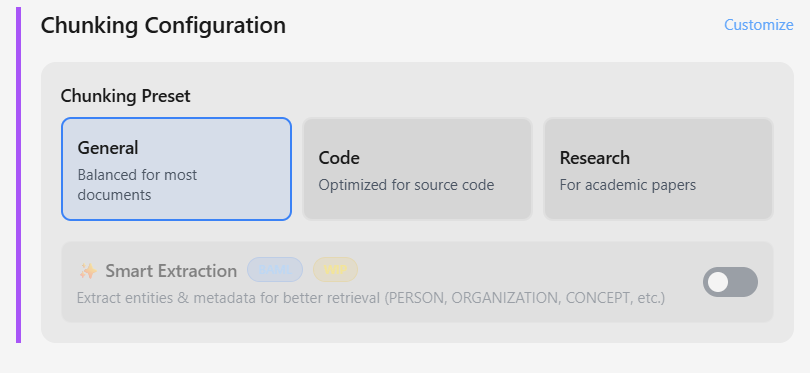 **Customization Options:**
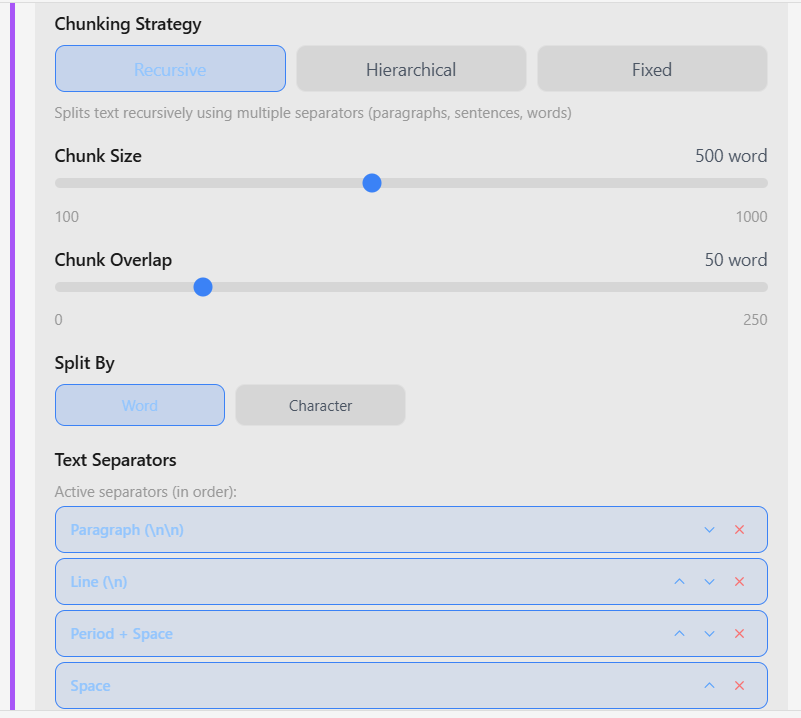 * **Recursive** (default): Splits by paragraphs → sentences → words
* **Hierarchical**: Multi-level chunks preserving structure
* **Fixed**: Simple fixed-size chunks
**Chunking parameters:**
* **Chunk size**: 100-1000 words/characters (default: 500)
* **Chunk overlap**: Overlap between chunks (default: 50)
* **Split by**: word or character (recursive only; hierarchical and fixed support word only)
**Smart Extraction (Coming Soon):**
AI-powered entity extraction is currently in development. When released, it will automatically extract entities (PERSON, ORGANIZATION, CONCEPT, etc.) and metadata for enhanced retrieval accuracy.
#### Structured Data Processing
For CSV and Excel files:
* **Recursive** (default): Splits by paragraphs → sentences → words
* **Hierarchical**: Multi-level chunks preserving structure
* **Fixed**: Simple fixed-size chunks
**Chunking parameters:**
* **Chunk size**: 100-1000 words/characters (default: 500)
* **Chunk overlap**: Overlap between chunks (default: 50)
* **Split by**: word or character (recursive only; hierarchical and fixed support word only)
**Smart Extraction (Coming Soon):**
AI-powered entity extraction is currently in development. When released, it will automatically extract entities (PERSON, ORGANIZATION, CONCEPT, etc.) and metadata for enhanced retrieval accuracy.
#### Structured Data Processing
For CSV and Excel files:
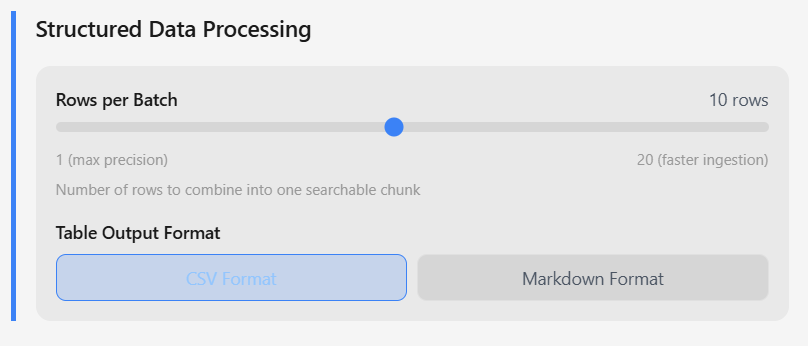 * **Rows per batch**: Combine 1-20 rows per searchable chunk
* **Table format**: CSV or Markdown output
* **CSV content column**: Specify which column contains text
* **Processing mode**: Row-level (one doc per row) or file-level
#### Embedding Configuration
* **Rows per batch**: Combine 1-20 rows per searchable chunk
* **Table format**: CSV or Markdown output
* **CSV content column**: Specify which column contains text
* **Processing mode**: Row-level (one doc per row) or file-level
#### Embedding Configuration
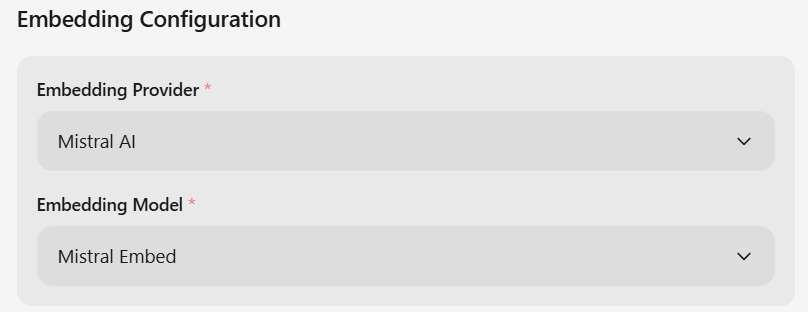 Choose your embedding provider:
* **Azure OpenAI**: text-embedding-ada-002 (1536 dimensions)
* **Mistral AI**: mistral-embed (1024 dimensions)
* **Telekom OTC**: BGE-M3, Jina v2 Base (DE/Code), TSI ColQwen2
**Retrieval options:**
* **Top K**: Number of results to return (default: 10)
* **Search EF**: HNSW search accuracy parameter (default: 64)
* **Metric Type**: Distance metric - COSINE (recommended), L2, or IP
* **Score threshold**: Minimum relevance score (0.0 - 1.0, optional)
* **Offset**: Skip N results for pagination (optional)
### Step 4: Retrieval Methods
Set up how agents query your data:
* **Similarity search**: Vector-based semantic search
* **Keyword search**: Traditional keyword matching
* **Hybrid search**: Combine vector + keyword for best results
## Using Knowledge Bases in Agents
Once created, add knowledge bases to your agents:
### Basic Configuration
```yaml theme={null}
agents:
- name: "support_agent"
agent_type: "llm_agent"
knowledge_bases:
- name: "product_docs"
knowledge_base_type: "milvus"
knowledge_base_id: "kb_abc123"
retrieval_config:
strategy: "dense" # dense, hybrid, bm25, or hybrid_rrf
top_k: 10
search_ef: 64
metric_type: "COSINE"
```
### Advanced Configuration
```yaml theme={null}
agents:
- name: "advanced_agent"
agent_type: "llm_agent"
knowledge_bases:
- name: "company_kb"
knowledge_base_type: "milvus"
knowledge_base_id: "kb_xyz789"
retrieval_config:
# Search strategy
strategy: "hybrid_rrf" # Options: dense, hybrid, bm25, hybrid_rrf
# Result count
top_k: 20
offset: 0 # For pagination
# Search quality
search_ef: 128 # Higher = more accurate but slower
metric_type: "COSINE" # COSINE, L2, or IP
score_threshold: 0.7 # Filter low-relevance results
# Query expansion (optional) - Improves recall by generating query variations
query_model: "gpt-4o" # LLM for generating alternative phrasings
max_num_query_expansions: 3 # Generate 3 additional query variants
```
**Search Strategy Options:**
* **dense**: Vector-based semantic search only (default, fastest)
* **hybrid**: Combines dense vector + BM25 keyword search
* **bm25**: Keyword-based search only
* **hybrid\_rrf**: Hybrid with Reciprocal Rank Fusion for better result ranking
Or use the **+** button in Playground to insert knowledge bases.
**→ [Knowledge Base Setup](/documentation/agent_config/knowledge-base-setup)** - Complete YAML configuration reference and advanced retrieval options
## Managing Your Data
### Updating Documents
**Cloud storage**: Files auto-sync when changed
**Manual uploads**:
1. Go to Data Sources
2. Click the data source
3. Upload new version or delete old files
### Deleting Data
**Delete a data source**: Removes from all collections
**Delete a collection**: Knowledge bases using it will stop working
**Delete a knowledge base**: Agents using it will fail
Always check which agents are using a knowledge base before deleting it
## Best Practices
**Organize by topic**: Create collections for different knowledge domains (product docs, policies, code, etc.)
**Use cloud storage for dynamic content**: If your docs change frequently, connect cloud storage instead of manual uploads
**Test retrieval quality**: Use the search preview in Knowledge Bases to test if you're getting relevant results
**Start with hybrid search**: Combines the best of vector and keyword search for most use cases
## Common Issues
**"No results found"**: Check your score threshold - it might be too high. Try lowering to 0.5 or 0.6
**"Irrelevant results"**: Increase the score threshold or reduce top\_k to get more focused results
**"Cloud sync failed"**: Re-authenticate your cloud storage connection in Settings → Integrations
## What's Next?
YAML configuration and advanced retrieval options
Add knowledge bases to agents
Vector database details
Cloud storage integration
Choose your embedding provider:
* **Azure OpenAI**: text-embedding-ada-002 (1536 dimensions)
* **Mistral AI**: mistral-embed (1024 dimensions)
* **Telekom OTC**: BGE-M3, Jina v2 Base (DE/Code), TSI ColQwen2
**Retrieval options:**
* **Top K**: Number of results to return (default: 10)
* **Search EF**: HNSW search accuracy parameter (default: 64)
* **Metric Type**: Distance metric - COSINE (recommended), L2, or IP
* **Score threshold**: Minimum relevance score (0.0 - 1.0, optional)
* **Offset**: Skip N results for pagination (optional)
### Step 4: Retrieval Methods
Set up how agents query your data:
* **Similarity search**: Vector-based semantic search
* **Keyword search**: Traditional keyword matching
* **Hybrid search**: Combine vector + keyword for best results
## Using Knowledge Bases in Agents
Once created, add knowledge bases to your agents:
### Basic Configuration
```yaml theme={null}
agents:
- name: "support_agent"
agent_type: "llm_agent"
knowledge_bases:
- name: "product_docs"
knowledge_base_type: "milvus"
knowledge_base_id: "kb_abc123"
retrieval_config:
strategy: "dense" # dense, hybrid, bm25, or hybrid_rrf
top_k: 10
search_ef: 64
metric_type: "COSINE"
```
### Advanced Configuration
```yaml theme={null}
agents:
- name: "advanced_agent"
agent_type: "llm_agent"
knowledge_bases:
- name: "company_kb"
knowledge_base_type: "milvus"
knowledge_base_id: "kb_xyz789"
retrieval_config:
# Search strategy
strategy: "hybrid_rrf" # Options: dense, hybrid, bm25, hybrid_rrf
# Result count
top_k: 20
offset: 0 # For pagination
# Search quality
search_ef: 128 # Higher = more accurate but slower
metric_type: "COSINE" # COSINE, L2, or IP
score_threshold: 0.7 # Filter low-relevance results
# Query expansion (optional) - Improves recall by generating query variations
query_model: "gpt-4o" # LLM for generating alternative phrasings
max_num_query_expansions: 3 # Generate 3 additional query variants
```
**Search Strategy Options:**
* **dense**: Vector-based semantic search only (default, fastest)
* **hybrid**: Combines dense vector + BM25 keyword search
* **bm25**: Keyword-based search only
* **hybrid\_rrf**: Hybrid with Reciprocal Rank Fusion for better result ranking
Or use the **+** button in Playground to insert knowledge bases.
**→ [Knowledge Base Setup](/documentation/agent_config/knowledge-base-setup)** - Complete YAML configuration reference and advanced retrieval options
## Managing Your Data
### Updating Documents
**Cloud storage**: Files auto-sync when changed
**Manual uploads**:
1. Go to Data Sources
2. Click the data source
3. Upload new version or delete old files
### Deleting Data
**Delete a data source**: Removes from all collections
**Delete a collection**: Knowledge bases using it will stop working
**Delete a knowledge base**: Agents using it will fail
Always check which agents are using a knowledge base before deleting it
## Best Practices
**Organize by topic**: Create collections for different knowledge domains (product docs, policies, code, etc.)
**Use cloud storage for dynamic content**: If your docs change frequently, connect cloud storage instead of manual uploads
**Test retrieval quality**: Use the search preview in Knowledge Bases to test if you're getting relevant results
**Start with hybrid search**: Combines the best of vector and keyword search for most use cases
## Common Issues
**"No results found"**: Check your score threshold - it might be too high. Try lowering to 0.5 or 0.6
**"Irrelevant results"**: Increase the score threshold or reduce top\_k to get more focused results
**"Cloud sync failed"**: Re-authenticate your cloud storage connection in Settings → Integrations
## What's Next?
YAML configuration and advanced retrieval options
Add knowledge bases to agents
Vector database details
Cloud storage integration