> ## Documentation Index
> Fetch the complete documentation index at: https://docs.artaios.ai/llms.txt
> Use this file to discover all available pages before exploring further.
# External Auth Setup
> Configure how external user tokens are validated so signed-in users can use your public agents
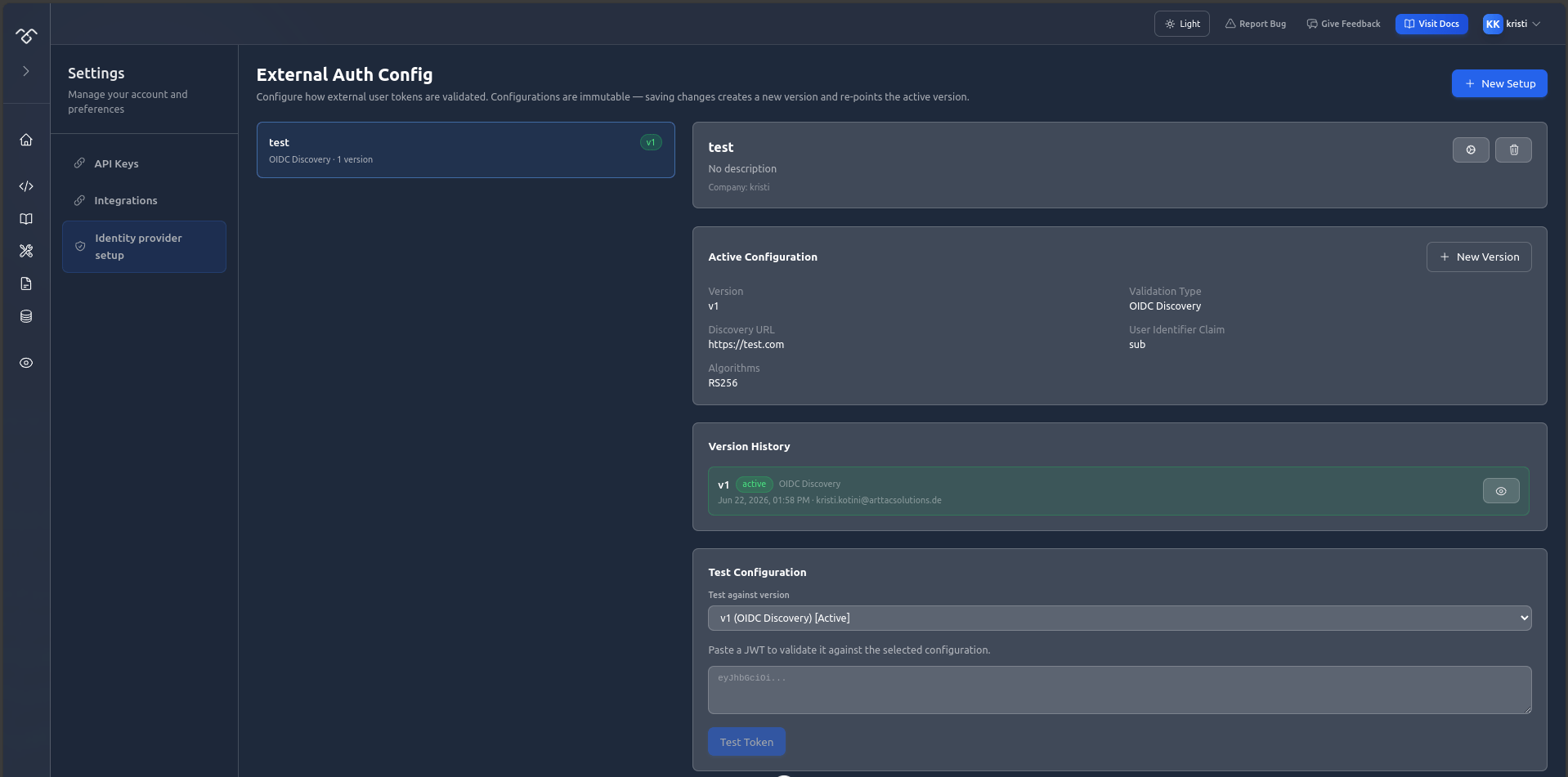
External Auth lets you connect your own identity provider (IdP) to AMAS so that **signed-in users** can use your public chatbots. When a user chats, their token (JWT) is validated against the sign-in system you configure here. Each configuration is scoped to your company and can be reused across multiple agents.
 ## When to Use External Auth
* You enabled **Public Access** on an agent and chose **Signed-in users only**.
* You want only verified users from your identity provider (for example Microsoft Entra ID or any OpenID Connect provider) to chat.
* You want each user's conversations saved to their personal Library.
You select a configured sign-in system per agent in the agent's **General** settings. See [Agent Management](/documentation/studio/my-agents#agent-settings).
## How It Works
Configurations are **immutable and versioned**:
* Saving changes never edits an existing version — it creates a **new version** and re-points the active one.
* You can **roll back** or **fast-forward** by activating any previous version.
* Secrets (such as a static public key) are **write-only**: they must be re-entered when creating a new version.
```mermaid theme={null}
flowchart LR
A[User signs in via your IdP] --> B[User token JWT]
B --> C[AMAS validates token against active config]
C -->|valid| D[User chats and conversations saved]
C -->|invalid| E[Access denied]
```
## Creating a Sign-in System
Go to **Settings** and open **External Auth Config** (also reachable via **Configure External Auth Setup** from an agent's General tab).
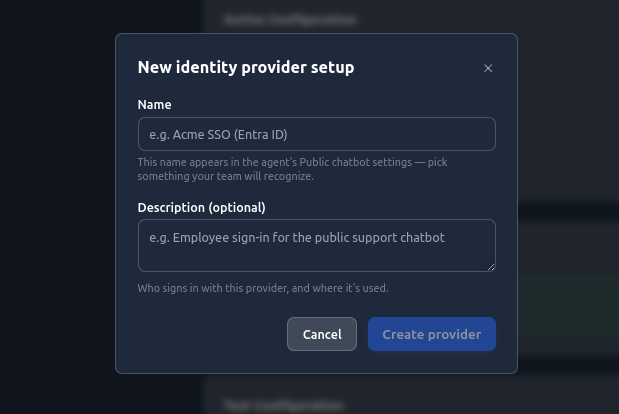
Click **New Setup** and provide:
* **Name**: A recognizable label (e.g. "Acme SSO (Entra ID)"). This name appears in the agent's public chatbot settings.
* **Description** (optional): Who signs in with this provider and where it's used.
## When to Use External Auth
* You enabled **Public Access** on an agent and chose **Signed-in users only**.
* You want only verified users from your identity provider (for example Microsoft Entra ID or any OpenID Connect provider) to chat.
* You want each user's conversations saved to their personal Library.
You select a configured sign-in system per agent in the agent's **General** settings. See [Agent Management](/documentation/studio/my-agents#agent-settings).
## How It Works
Configurations are **immutable and versioned**:
* Saving changes never edits an existing version — it creates a **new version** and re-points the active one.
* You can **roll back** or **fast-forward** by activating any previous version.
* Secrets (such as a static public key) are **write-only**: they must be re-entered when creating a new version.
```mermaid theme={null}
flowchart LR
A[User signs in via your IdP] --> B[User token JWT]
B --> C[AMAS validates token against active config]
C -->|valid| D[User chats and conversations saved]
C -->|invalid| E[Access denied]
```
## Creating a Sign-in System
Go to **Settings** and open **External Auth Config** (also reachable via **Configure External Auth Setup** from an agent's General tab).
Click **New Setup** and provide:
* **Name**: A recognizable label (e.g. "Acme SSO (Entra ID)"). This name appears in the agent's public chatbot settings.
* **Description** (optional): Who signs in with this provider and where it's used.
 With the setup selected, click **Add Configuration** and choose a **Validation Type** (see below).
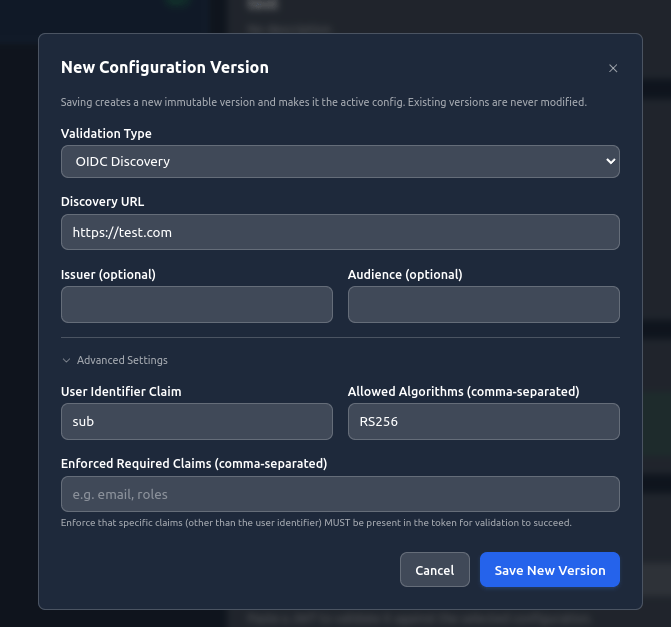 Click **Save New Version**. The new version becomes the **active** configuration immediately.
The setup shows an active version label and the validation type you selected.
## Validation Types
Choose how tokens are verified. Only the fields relevant to the selected type are shown.
Uses the provider's well-known discovery document to locate signing keys automatically.
The OpenID configuration endpoint, e.g. `https://issuer/.well-known/openid-configuration`.
Fetches signing keys directly from a JWKS endpoint.
The JSON Web Key Set endpoint, e.g. `https://issuer/.well-known/jwks.json`.
Fetches a public key from a custom endpoint.
The endpoint serving the public key, e.g. `https://issuer/keys`.
Optional dotted path used to extract the public key from the JSON response.
**Supported syntax:**
* **Object properties**: `field.subfield`
* **Array indices**: `field[0]`, `field[1]`
* **Root-level arrays**: `[0]`, `[1]`
**Examples:**
```json Object Property theme={null}
// JSON Response
{
"keys": {
"public": "-----BEGIN PUBLIC KEY-----..."
}
}
// Path
keys.public
```
```json Array Index theme={null}
// JSON Response
{
"keys": [
{
"public": "-----BEGIN PUBLIC KEY-----..."
}
]
}
// Path
keys[0].public
```
```json Root Array theme={null}
// JSON Response
[
{
"public": "-----BEGIN PUBLIC KEY-----..."
}
]
// Path
[0].public
```
Validates tokens against a fixed PEM key you paste in.
The PEM-encoded public key, starting with `-----BEGIN PUBLIC KEY-----`.
### Common Fields
These optional fields apply to every validation type:
Expected `iss` claim. When set, tokens with a different issuer are rejected.
Expected `aud` claim. When set, tokens with a different audience are rejected.
### Advanced Settings
The claim used to identify the user (for example `sub` or `email`).
Comma-separated list of accepted signing algorithms (for example `RS256`). Sensible defaults are applied per validation type.
Comma-separated claims (other than the user identifier) that MUST be present in the token for validation to succeed (for example `email, roles`).
## Managing Versions
Click **Save New Version**. The new version becomes the **active** configuration immediately.
The setup shows an active version label and the validation type you selected.
## Validation Types
Choose how tokens are verified. Only the fields relevant to the selected type are shown.
Uses the provider's well-known discovery document to locate signing keys automatically.
The OpenID configuration endpoint, e.g. `https://issuer/.well-known/openid-configuration`.
Fetches signing keys directly from a JWKS endpoint.
The JSON Web Key Set endpoint, e.g. `https://issuer/.well-known/jwks.json`.
Fetches a public key from a custom endpoint.
The endpoint serving the public key, e.g. `https://issuer/keys`.
Optional dotted path used to extract the public key from the JSON response.
**Supported syntax:**
* **Object properties**: `field.subfield`
* **Array indices**: `field[0]`, `field[1]`
* **Root-level arrays**: `[0]`, `[1]`
**Examples:**
```json Object Property theme={null}
// JSON Response
{
"keys": {
"public": "-----BEGIN PUBLIC KEY-----..."
}
}
// Path
keys.public
```
```json Array Index theme={null}
// JSON Response
{
"keys": [
{
"public": "-----BEGIN PUBLIC KEY-----..."
}
]
}
// Path
keys[0].public
```
```json Root Array theme={null}
// JSON Response
[
{
"public": "-----BEGIN PUBLIC KEY-----..."
}
]
// Path
[0].public
```
Validates tokens against a fixed PEM key you paste in.
The PEM-encoded public key, starting with `-----BEGIN PUBLIC KEY-----`.
### Common Fields
These optional fields apply to every validation type:
Expected `iss` claim. When set, tokens with a different issuer are rejected.
Expected `aud` claim. When set, tokens with a different audience are rejected.
### Advanced Settings
The claim used to identify the user (for example `sub` or `email`).
Comma-separated list of accepted signing algorithms (for example `RS256`). Sensible defaults are applied per validation type.
Comma-separated claims (other than the user identifier) that MUST be present in the token for validation to succeed (for example `email, roles`).
## Managing Versions
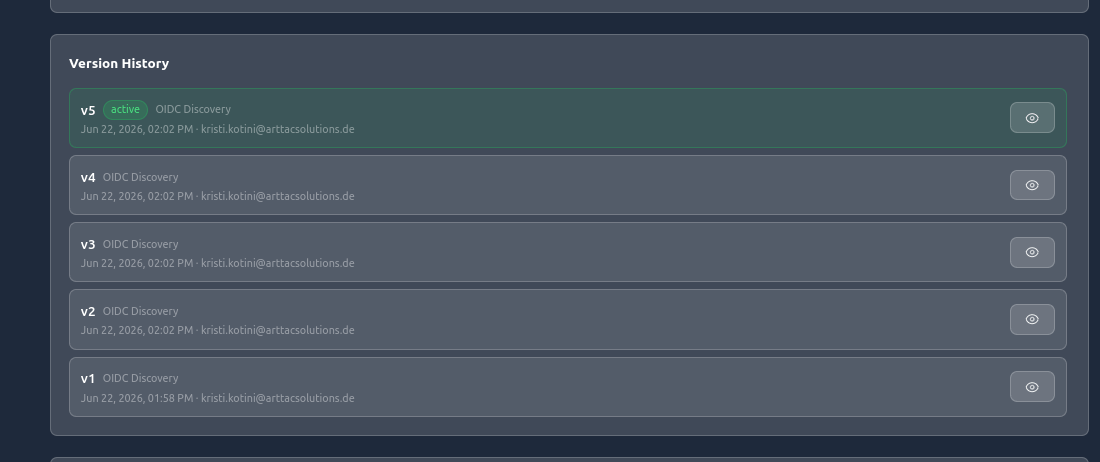 * **Version History** lists every saved configuration with its validation type, creation time, and author.
* The **active** version is highlighted and is the one used to validate tokens.
* Open a version to **view its details** and **Activate** it to roll back or fast-forward.
Activating an older version takes effect immediately for all agents using this setup.
## Testing a Configuration
Before relying on a configuration, validate a real token against it.
* **Version History** lists every saved configuration with its validation type, creation time, and author.
* The **active** version is highlighted and is the one used to validate tokens.
* Open a version to **view its details** and **Activate** it to roll back or fast-forward.
Activating an older version takes effect immediately for all agents using this setup.
## Testing a Configuration
Before relying on a configuration, validate a real token against it.
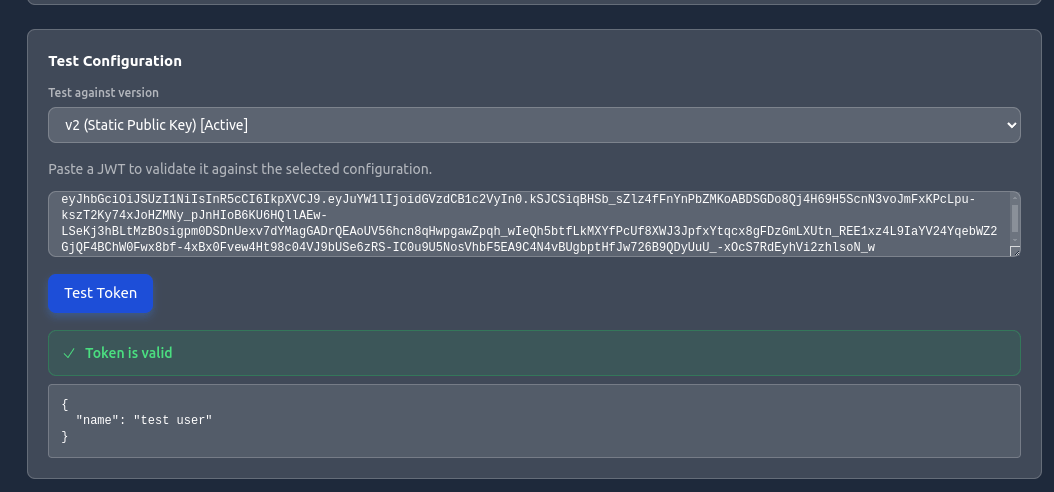 Choose which version to test against (the active one is marked).
Paste a token issued by your identity provider.
Click **Test Token**. The result shows whether the token is valid, any validation errors, the resolved **user identifier**, and the decoded claims.
A valid token returns "Token is valid" with the expected user identifier.
## Connecting to an Agent
In **Agent Management**, open **Settings** and go to the **General** tab.
Turn on **Public Access** and provide an **Allowed Origin URL**.
Under **Who can use the chatbot?**, choose **Signed-in users only**.
Pick the External Auth configuration you created from the **Sign-in system** dropdown, then save.
See [Agent Management → General](/documentation/studio/my-agents#agent-settings) for the agent-side configuration.
## Deleting a Setup
Deleting a setup removes it and all of its config versions. Agents using it will no longer be able to authenticate external tokens.
Deletion cannot be undone. Make sure no public agent depends on the setup before deleting it.
## What's Next?
Configure public access and sign-in per agent
Manage API keys and OAuth integrations
Embed an agent in your website
Connect your agents to applications
This documentation is built and hosted on [Mintlify](https://mintlify.com), a developer documentation platform.
Choose which version to test against (the active one is marked).
Paste a token issued by your identity provider.
Click **Test Token**. The result shows whether the token is valid, any validation errors, the resolved **user identifier**, and the decoded claims.
A valid token returns "Token is valid" with the expected user identifier.
## Connecting to an Agent
In **Agent Management**, open **Settings** and go to the **General** tab.
Turn on **Public Access** and provide an **Allowed Origin URL**.
Under **Who can use the chatbot?**, choose **Signed-in users only**.
Pick the External Auth configuration you created from the **Sign-in system** dropdown, then save.
See [Agent Management → General](/documentation/studio/my-agents#agent-settings) for the agent-side configuration.
## Deleting a Setup
Deleting a setup removes it and all of its config versions. Agents using it will no longer be able to authenticate external tokens.
Deletion cannot be undone. Make sure no public agent depends on the setup before deleting it.
## What's Next?
Configure public access and sign-in per agent
Manage API keys and OAuth integrations
Embed an agent in your website
Connect your agents to applications
This documentation is built and hosted on [Mintlify](https://mintlify.com), a developer documentation platform.